The Retro Terrain Lit shader can be applied to terrains to use similar retro effects as the Retro Lit shader.
Some of the features in this version of the shader will use the first splatmap texture from your terrain as a base. For example, the Texel Lit lighting mode will use the resolution settings for Splat0 and align with its texels. Please ensure that all textures assigned to your terrain use a consistent texture resolution for optimal visuals.
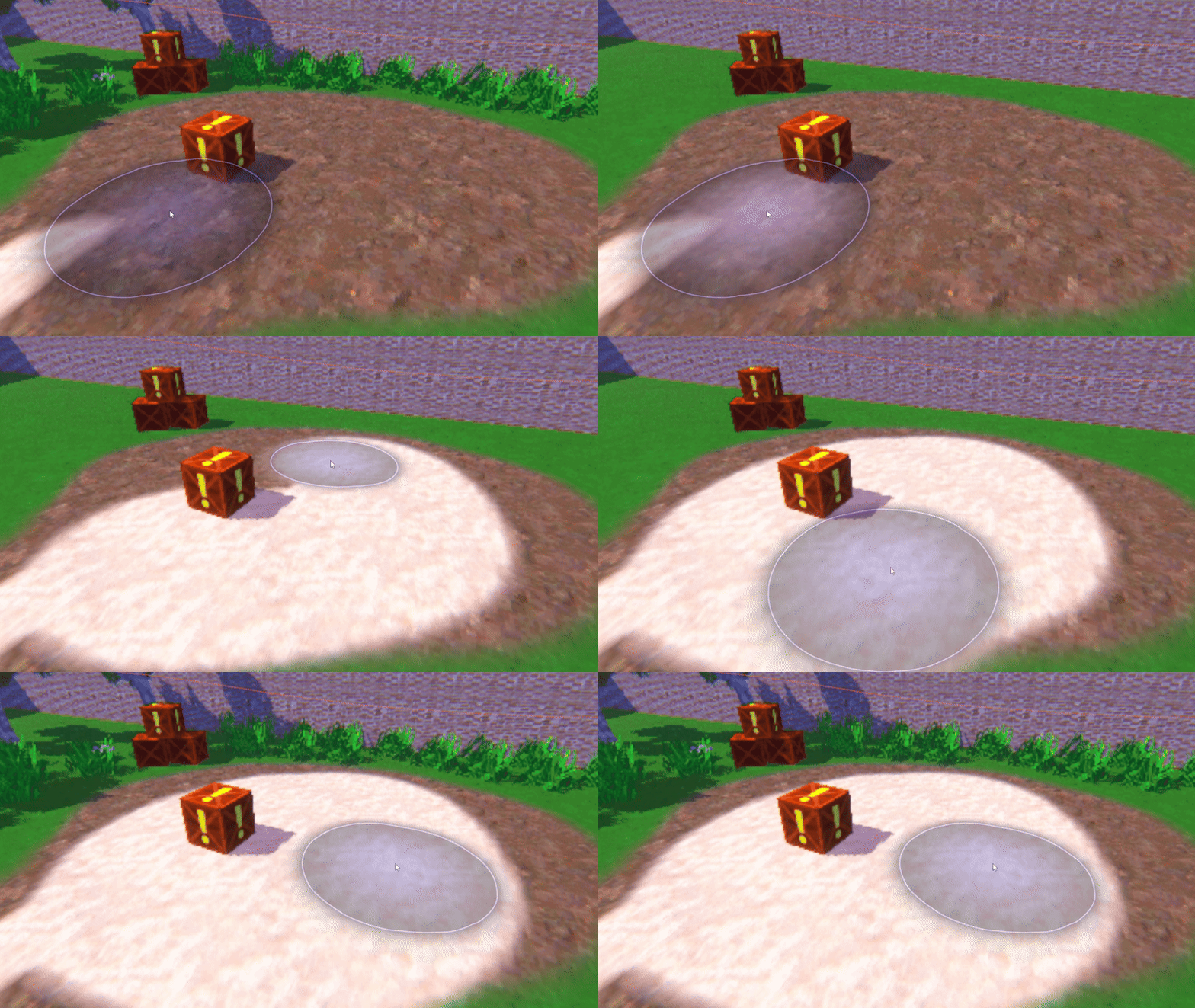
Parameters
Color & Texture Properties
- Color Bit Depth - How many possible color values can exist per channel. Typically, the maximum for a PNG image would be 256.
- Color Bit Depth Offset - Adds a small offset to prevent color darkening, which is common when reducing the color depth. The 0 to 1 range of this parameter represents an addition of 0 to 1/(color depth) to the output color.
- Resolution Limit - The new texture resolution. Note that this is rounded down to the next power of 2 (e.g. 196 would actually mean a texture resolution of 128).
- Filtering Mode - Choose how to filter the Base Texture while sampling:
- Bilinear - Blend between the nearest four pixels, which appears smooth.
- Point - Use nearest neighbor sampling, which appears blocky.
- N64 - Use the limited 3-point bilinear sampling method from the Nintendo 64.
- Dithering Mode - Choose how the shader should use dithering to blend colors which fall between color bit values.
- Screen - Use screen-space coordinates for dithering. This mode is driven in part by the pixel size parameter of the CRT post process effect.
- Texture - Use texture coordinates for dithering.
- Off - Don’t use any dithering.
- Use Vertex Colors - Choose whether to multiply the Base Color using vertex colors.
Vertex Snapping Properties
- Snapping Mode - Choose how to snap vertices to a limited number of points in space.
- Object - Snap vertices relative to the model coordinates.
- World - Snap vertices relative to the scene coordinates.
- View - Snap vertices relative to the camera coordinates.
- Off - Don’t do any snapping.
- Snaps Per Meter - The vertices of the mesh will snap to this number of snap points per meter along each axis.
Lighting & Shadow Properties
- Lighting Mode - Choose what type of lighting model to use.
- Lit - Use per-pixel lighting as standard.
- Texel Lit - Snap lighting and shadows to the closest texel on the object’s texture.
- Vertex Lit - Use per-vertex lighting and interpolate light values for pixels.
- Unlit - Don’t use lighting calculations (everything is always fully lit).
- Receive Shadows - Should shadows from other objects affect this object?
- Ambient Light Override - Toggle to choose Unity ambient light or the Ambient Light Strength property.
- Ambient Light Strength - Sets a lower bound for how dark the shadowed areas of a mesh may appear.
- Use Specular Lighting - Choose whether to apply a specular highlight to the object.
- Glossiness - A power value to apply to the specular lighting. The higher this value is, the smaller the highlight appears on the surface of the object.
- Use Reflection Cubemap - Choose whether to use a cubemap texture to approximate indirect light reflections surrounding the object.
- Reflection Cubemap - A cubemap texture which encodes the reflected light around the object.
- Cubemap Rotation - How much to rotate the cubemap around the y-axis, in degrees.