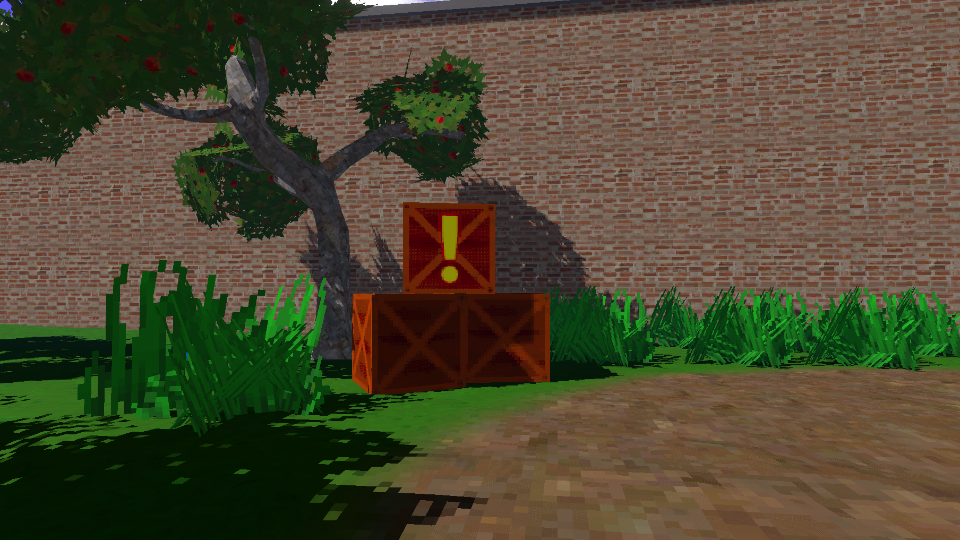
The Retro Lit shader is the core effect of this pack, which applies retro PSX-style rendering to meshes.
Parameters
Surface Options
- Surface Type - Toggle between Opaque and Transparent rendering.
- Render Face - Choose whether to render Front, Back, or Both faces.
- Alpha Clip - Toggle whether the shader should apply the Alpha Clip Threshold.
- Alpha Clip Threshold - Pixels with final alpha values below this threshold will be culled (if Alpha Clip is enabled).
Color & Texture Properties
- Base Color - The albedo color of the object.
- Base Texture - An albedo texture which can be used to apply more color detail than Base Color alone.
- Color Bit Depth - How many possible color values can exist per channel. Typically, the maximum for a PNG image would be 256.
- Color Bit Depth Offset - Adds a small offset to prevent color darkening, which is common when reducing the color depth. The 0 to 1 range of this parameter represents an addition of 0 to 1/(color depth) to the output color.
- Resolution Limit - The new texture resolution. Note that this is rounded down to the next power of 2 (e.g. 196 would actually mean a texture resolution of 128).
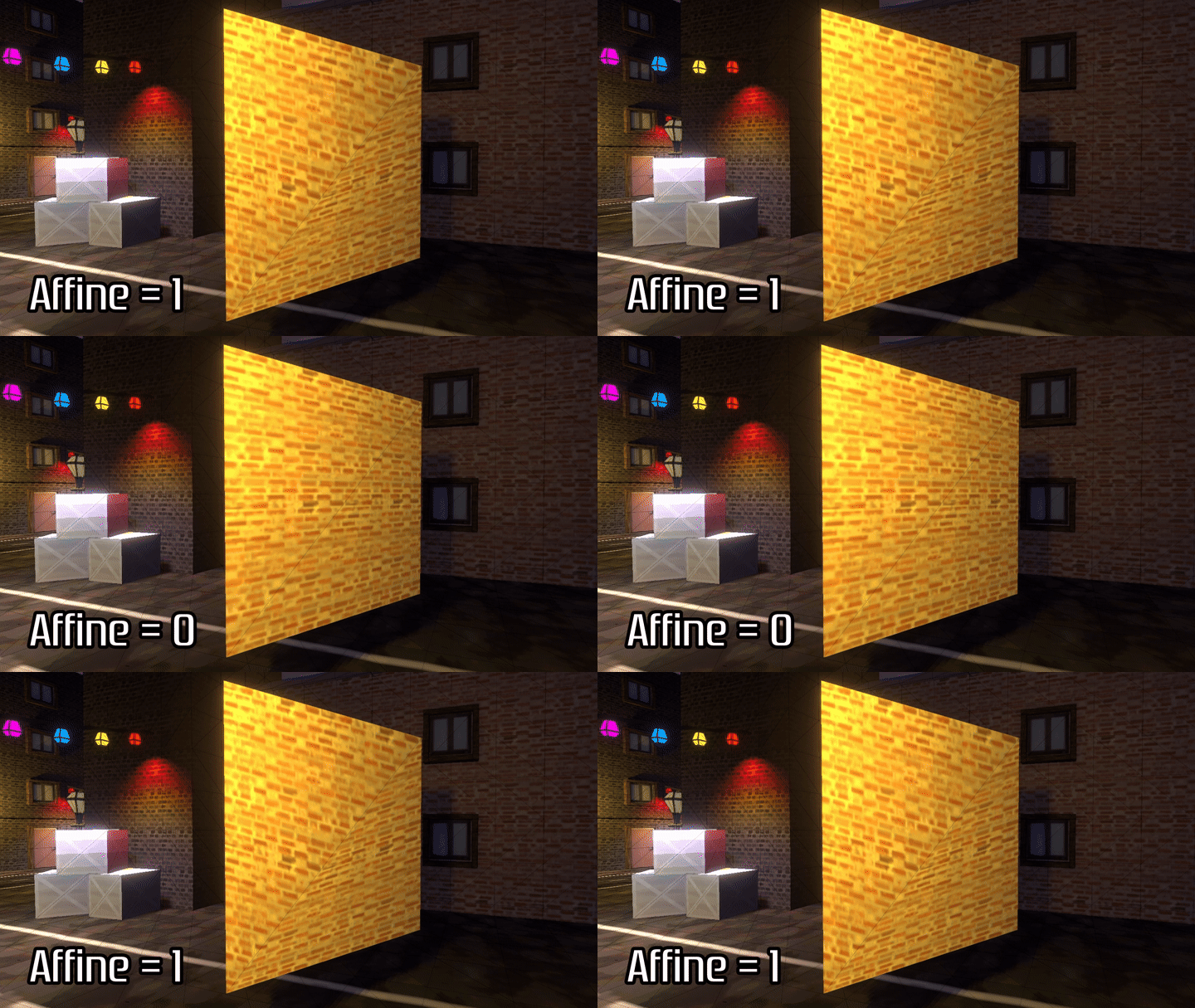
- Affine Texture Strength - How strongly the shader should apply affine texture warping effects. 0 means the shader uses perspective-correct mapping, and 1 means full affine texture mapping.
- Filtering Mode - Choose how to filter the Base Texture while sampling:
- Bilinear - Blend between the nearest four pixels, which appears smooth.
- Point - Use nearest neighbor sampling, which appears blocky.
- N64 - Use the limited 3-point bilinear sampling method from the Nintendo 64.
- Dithering Mode - Choose how the shader should use dithering to blend colors which fall between color bit values.
- Screen - Use screen-space coordinates for dithering. This mode is driven in part by the pixel size parameter of the CRT post process effect.
- Texture - Use texture coordinates for dithering.
- Off - Don’t use any dithering.
- Use Vertex Colors - Choose whether to multiply the Base Color using vertex colors.
Vertex Snapping Properties
- Snapping Mode - Choose how to snap vertices to a limited number of points in space.
- Object - Snap vertices relative to the model coordinates.
- World - Snap vertices relative to the scene coordinates.
- View - Snap vertices relative to the camera coordinates.
- Off - Don’t do any snapping.
- Snaps Per Meter - The vertices of the mesh will snap to this number of snap points per meter along each axis.
Lighting & Shadow Properties
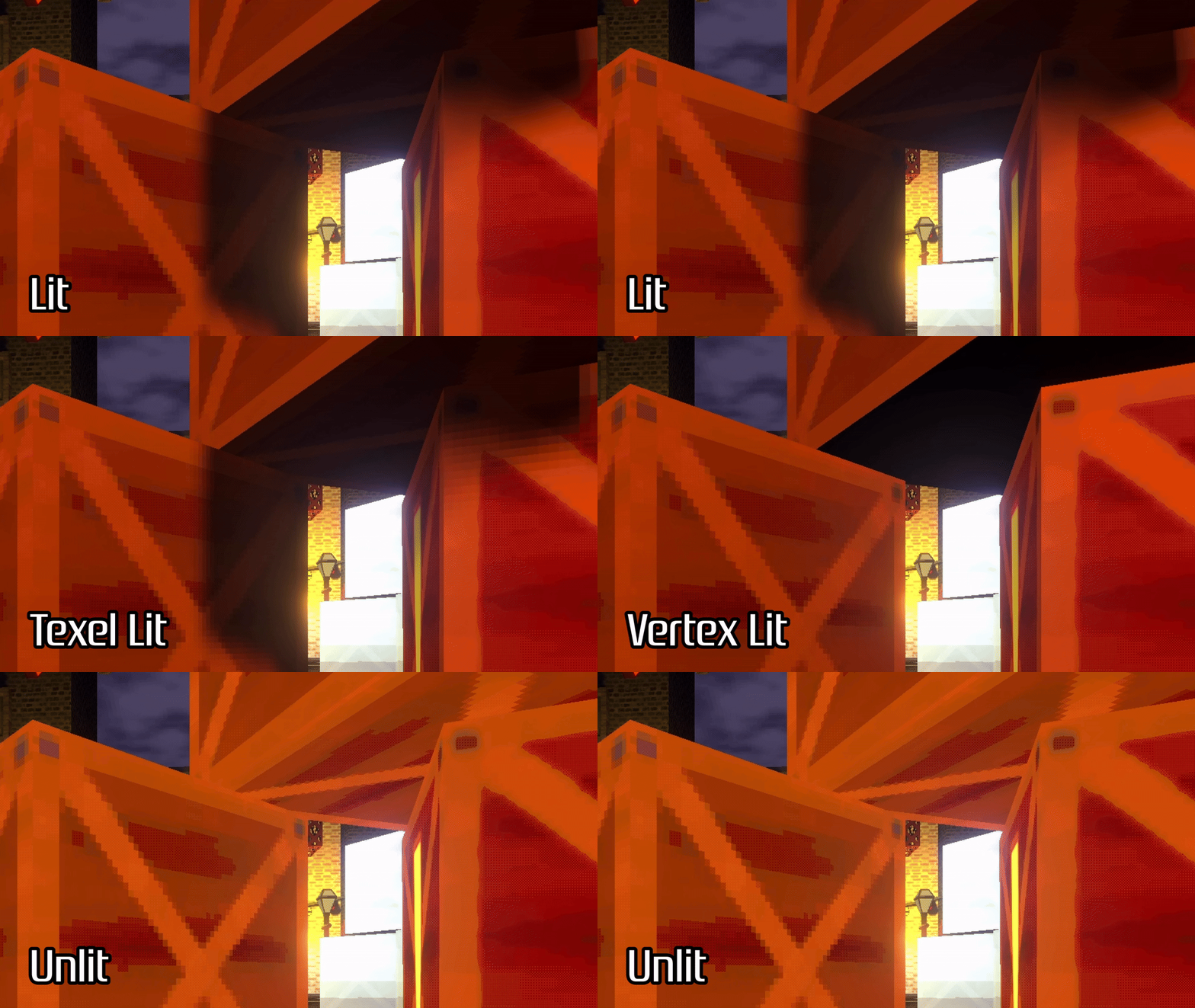
- Lighting Mode - Choose what type of lighting model to use.
- Lit - Use per-pixel lighting as standard.
- Texel Lit - Snap lighting and shadows to the closest texel on the object’s texture.
- Vertex Lit - Use per-vertex lighting and interpolate light values for pixels.
- Unlit - Don’t use lighting calculations (everything is always fully lit).
- Use Flat Shading - Should the shader flatten the mesh triangles while shading?
- Receive Shadows - Should shadows from other objects affect this object?
- Ambient Light Override - Toggle to choose Unity ambient light or the Ambient Light Strength property.
- Ambient Light Strength - Sets a lower bound for how dark the shadowed areas of a mesh may appear.
- Use Specular Lighting - Choose whether to apply a specular highlight to the object.
- Glossiness - A power value to apply to the specular lighting. The higher this value is, the smaller the highlight appears on the surface of the object.
- Use Reflection Cubemap - Choose whether to use a cubemap texture to approximate indirect light reflections surrounding the object.
- Reflection Cubemap - A cubemap texture which encodes the reflected light around the object.
- Cubemap Rotation - How much to rotate the cubemap around the y-axis, in degrees.