The Gradient hologram lets you specify a blend of colors between the top and bottom of the hologram.
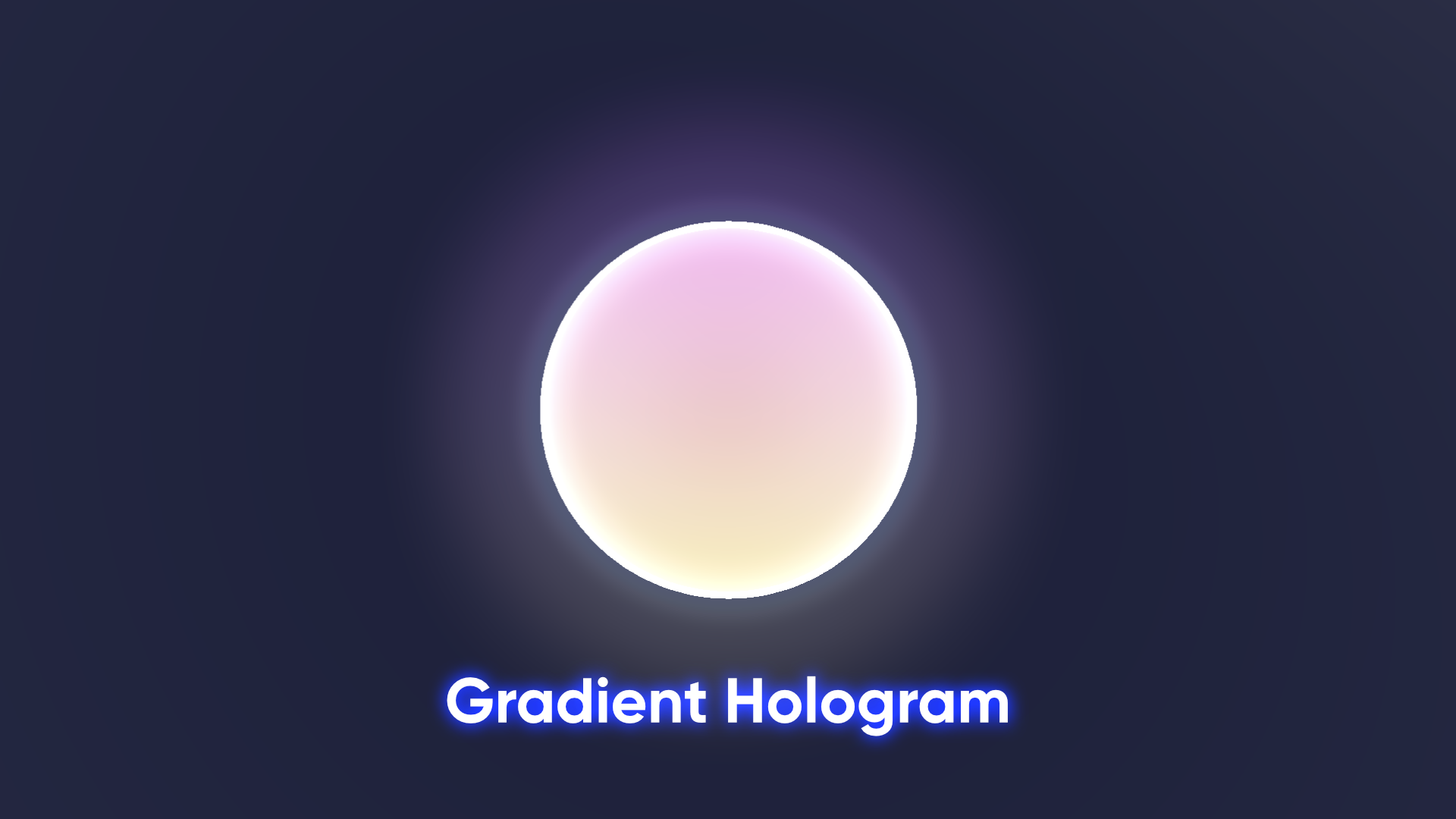
Properties
Basic PBR Properties
These properties control the basic interactions between Godot’s lighting and the object. Includes the crucial emissive color settings that control the appearance of the holograms.
- Output Mode - Controls whether the shader outputs color to Albedo, Emission, or both.
- Base Color - Controls the color of the object at the bottom of the hologram.
- Base Color 2 - Controls the color of the object at the top of the hologram.
- Base Texture - Also controls the color of the object. This is multiplied by Base Color.
- Normal Texture - Used to change the normal vectors on the surface, which influences lighting interactions. May not be noticeable due to the usage of bright emissive light.
- Normal Strength - A value between 0 and 1 which controls how strongly the Normal Texture impacts the surface normals.
- Alpha Clip Threshold - Any pixel with an output alpha value below this value is culled entirely.
Vertex Glitches
This type of glitch effect pulls individual vertices of the object to the side (away from the center of the object).
- Use Vertex Glitches - A Boolean value – when on, vertex glitches will be displayed, and when off, vertex glitches are turned off.
- Glitch Sensitivity - How easy it is for a given vertex to fall under the random threshold and start glitching. Higher values mean a lower chance to glitch. This is a value between 0 and 1 that I recommend keeping very high (above 0.99) unless you want a lot of glitches.
- Glitch Normal Multiplier - A multiplier weight value applied to each component of the normal vector for calculating the offsets. e.g. (1, 0, 1) will pull vertices only along the X-Z plane.
- Glitch Strength - How far glitches vertices extend from their original position along their vertex normal.
- Glitch Time Offset - A time offset – you can use two materials with identical settings except a different offset, and they won’t glitch at the same time.
- Glitch Frequency - How often glitches occur.
Segment Glitches
This type of glitch effect takes a horizontal slice of the object and pulls all the vertices in the slice in a specified direction briefly.
- Use Slice Glitches - A Boolean value – when on, slice glitches will be displayed, and when off, slice glitches are turned off.
- Slice Width - The width, in world space, along the y-axis that the glitch takes up
- Slice Speed - How quickly the glitch effect scrolls down the object
- Slice Frequency - How often glitches occur.
- Slice Jitter - A slight random offset which makes it appear as if the glitch jitters. Probably don’t set it too high or the shader may flash too rapidly (capped to 0.2 by default).
- Slice Duration - How long a slice glitch event occurs for.
- Slice Direction - The direction in which all vertices in the glitch are pulled in world space.
Color Gradient
These properties let you specify a color gradient over the surface along the y-direction in a specified space.
- Gradient Space - Should the gradient be applied in Object, World, or Screen space?
- Gradient MinMax Y - The Base Color is applied whenever the y-component of the position (in whichever space you picked) is at the Min value (and below), and the Base Color 2 is applied whenever the y-component of the position is at the Max value (and above).
Fresnel
Fresnel adds light to the edge/rim of an object.
- Fresnel Power - The size of the Fresnel/rim. Higher values mean the rim is smaller, but this should be a value above 0.
- Fresnel Color - Color of the Fresnel/rim light. Can be different to the Base Color.
- Fresnel Color 2 - Color of the Fresnel/rim light at the top of the hologram.
- Use Scene Intersections - Should the shader detect when a pixel is just in front of another scene object? Note: only able to detect opaque objects.
- Intersection Power - The size of the intersections. Larger values mean a thinner intersection glow.
Time
Some shaders which use a time component can choose to use unscaled time. Unity does not provide an unscaled time value to shaders – it must be supplied via script to the shader. This is useful in cases where you wish to change Time.timeScale, but still allow shaders to animate at usual speed.
- Use Unscaled Time - When on, the shader will still scroll even if Time.timeScale is changed.