In Part 6, we learned about ambient, diffuse, specular, and Fresnel lighting, using light data in shaders, and adding a shadow caster pass to any effect. In this tutorial, we’ll build on that work and learn about Physically Based Rendering.
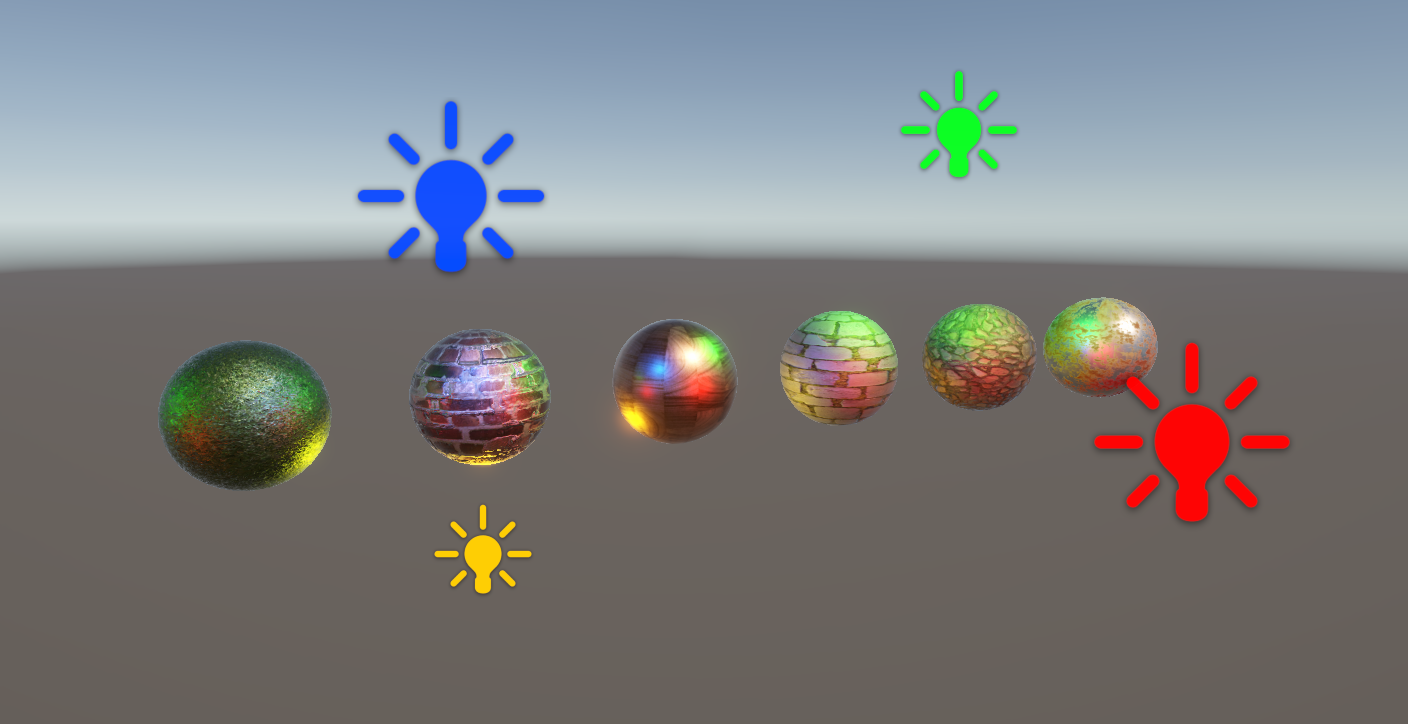
Physically Based Rendering
PBR shaders attempt to simulate the way light interacts with real-world objects, and PBR materials typically have parameters for describing the physical properties of the surface, such as its albedo color, its normals, its smoothness or roughness, how metallic it is, and so on.
For photorealistic materials, PBR is preferable to older techniques like the Phong shading model we learned about in the previous Part, which is more vibes-based: we tweak the parameters until it just about looks right. Ideally, a good PBR shader should let us say “this object is red, it’s metallic, it is smooth” and the underlying calculations go ahead and give us that.
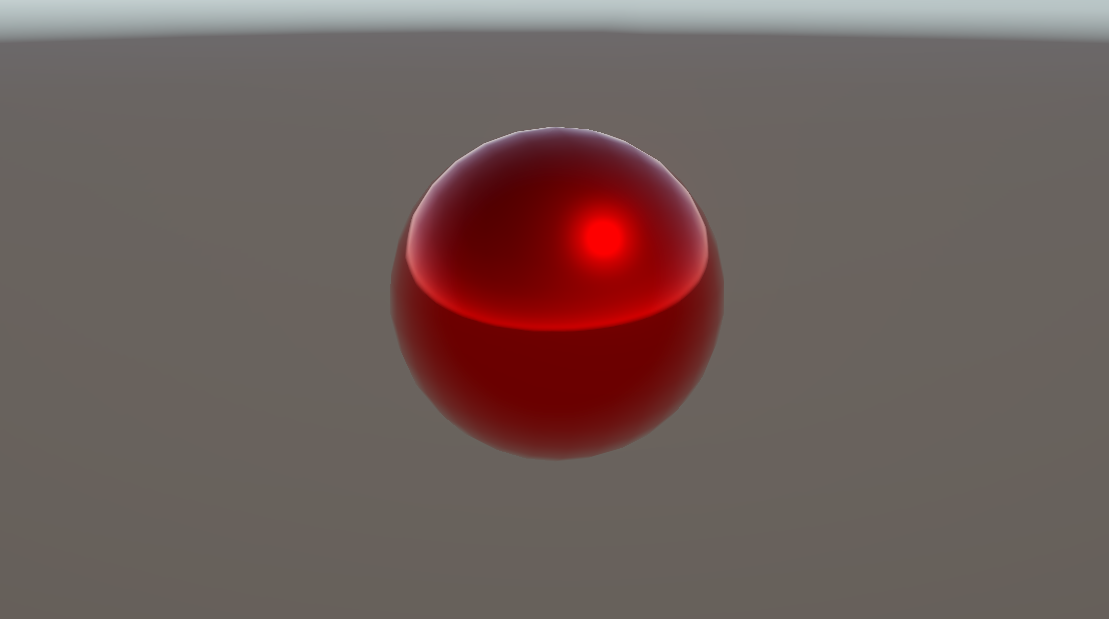
The URP Lit shader is an example of PBR. To describe a surface, we typically use a series of texture maps. It gets slightly more complicated because there are two possible workflows for PBR, but they mostly share the same texture maps and we’ll explore the difference later. Let’s rattle each one off.
Base Color
The Base Map, which is also called Albedo or sometimes even the Diffuse Map (named as such because it can be used to control diffuse color, so it’s close enough as a legacy term), describes the actual color of the object if all lighting were stripped away. Maybe the metal sphere in the image above looks brighter in some places, but with the specular highlights and reflections removed, it would have a red base color.
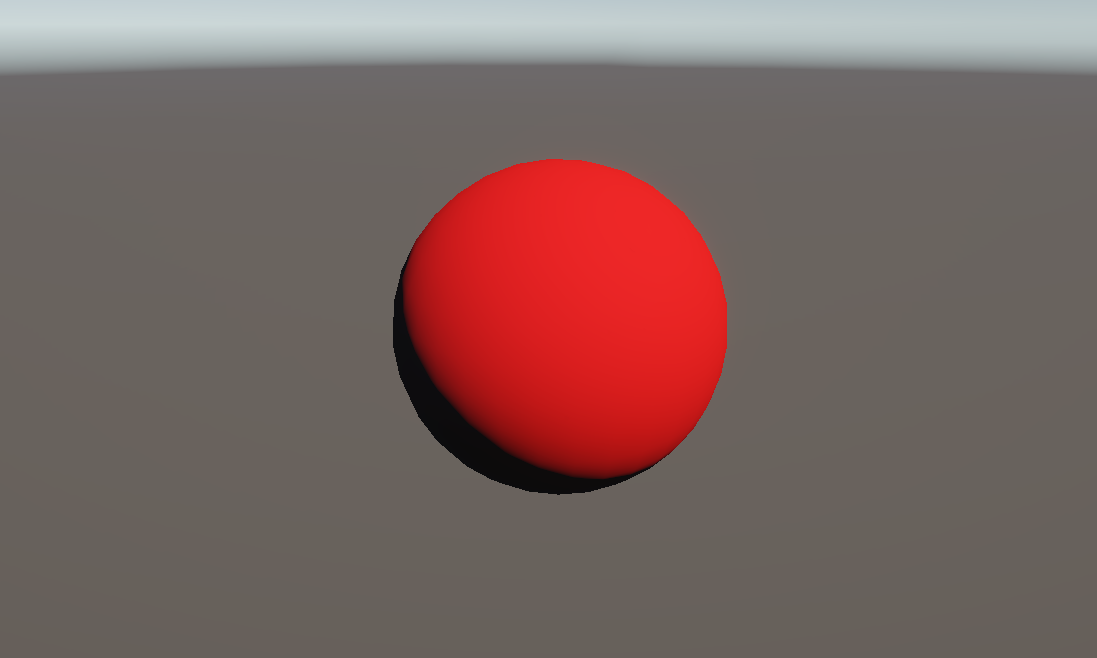
The RGB components of this texture supply the color, and the alpha channel is typically where we source the transparency of the object, rather than using a separate transparency map.
Metallic
The Metallic Map describes which parts of the object are metallic, and which are not, as a value between 0 and 1, so we only care about greyscale values. Most objects have values really close to 0 or 1 – it’s very rare to find a real object with 0.5 metallic.
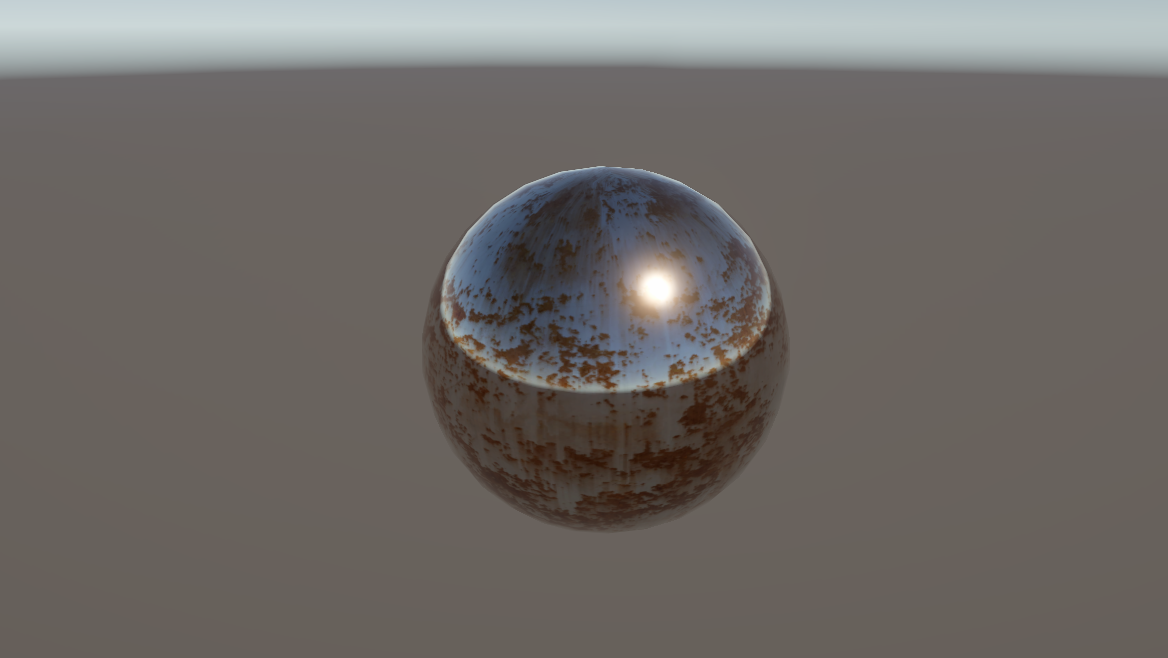
Metallic objects tend to lack diffuse color and most of their color comes from the specular component, and environmental reflections.
Specular
However, the metallic workflow is just one of two ways we can model PBR objects. Instead of the metallic map, we can use a Specular Map, which specifies the specular color of each part of the surface, so the red, green, and blue components of the texture matter.
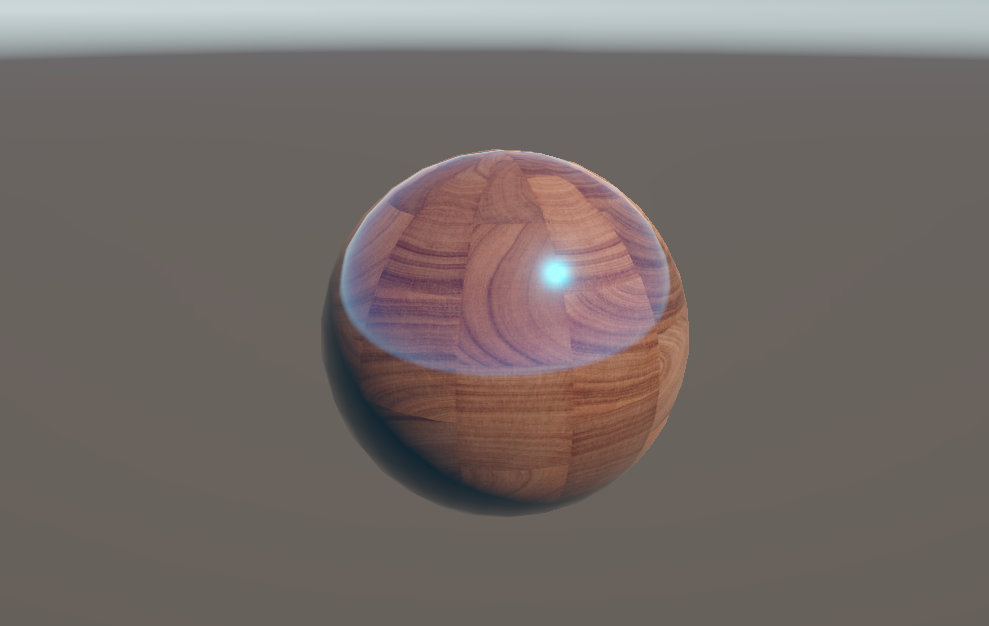
For a PBR material, we choose either the Metallic or Specular workflow, and the shader reads from the corresponding texture map.
Smoothness
The Smoothness Map determines how uneven the surface of the material is. If you zoom in on any surface, even if it appears flat with the naked eye, it may have many bumps, ridges, nooks, and crannies which reflect light in all directions – in other words, the surface might not be smooth. We model these imperfections as incredibly tiny flat surfaces called ‘microfacets’.
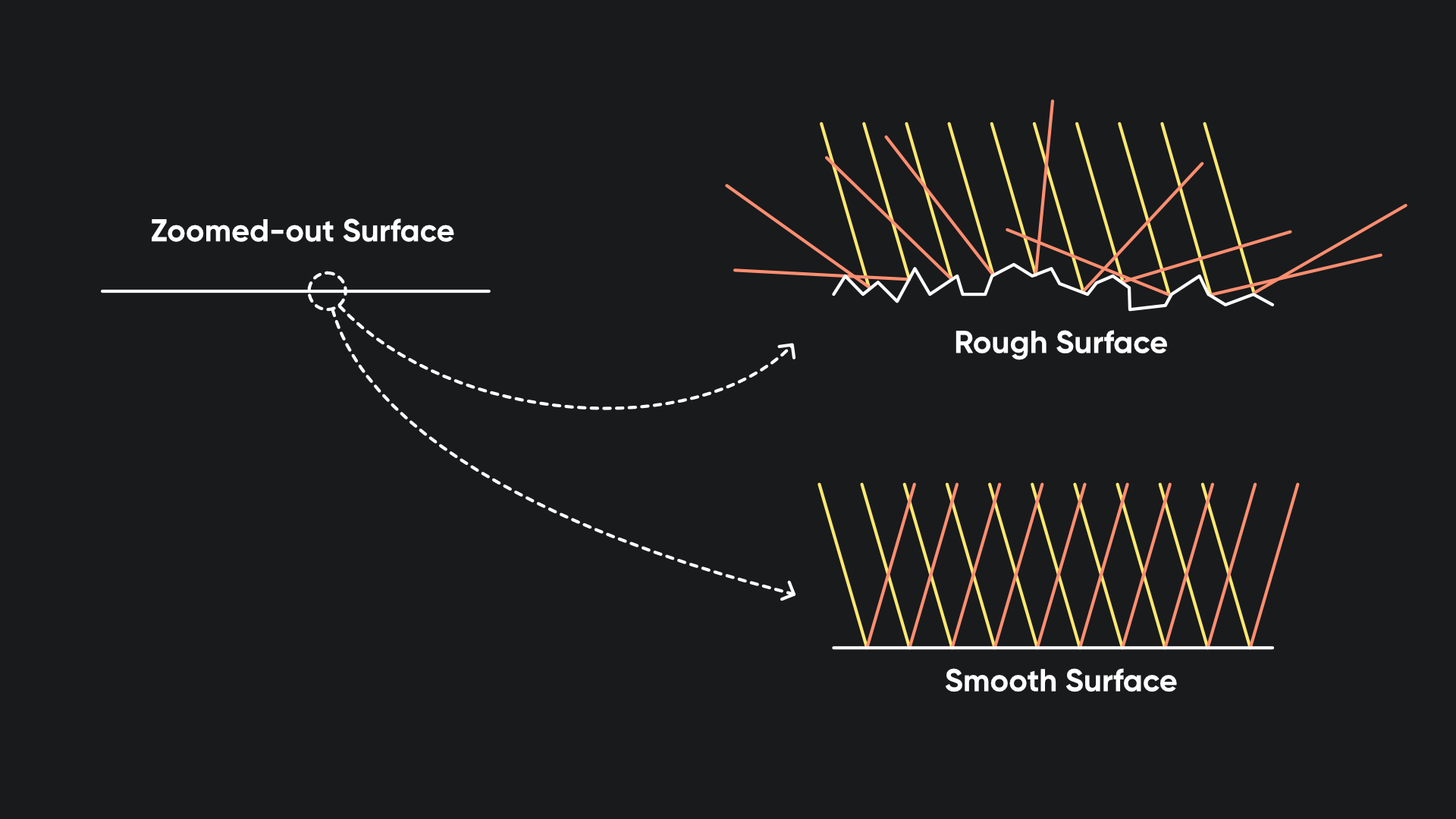
The smoothness map essentially tells us what percentage of the millions and millions of microfacets are flat at any point, as a greyscale value from 0 to 1, and the underlying PBR model changes the way lighting reflects off the surface. Smoother materials are shinier.
Normal
Next up is the Normal Map, which you’re familiar with from Part 6. It lets us modify the facing direction of the surface without needing to actually model small details.
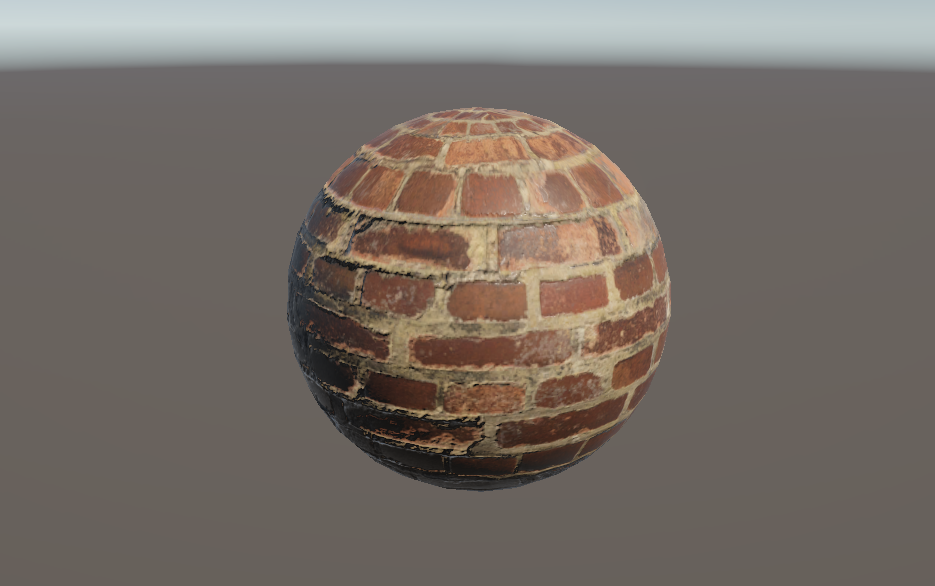
It might sound similar in some ways to the smoothness map, but no – the normal map has no impact on how shiny the object is, and likewise, the smoothness map has no influence on the position of any shadows or shiny highlights.
Height
The Height Map comes next, and this one is interesting since it modifies how raised or lowered each part of the surface is, as a greyscale value from 0 to 1. Typically, we take these height values and use parallax mapping to modify the UVs we use to sample all the other maps. If one bit of the object is supposed to be raised, we’ll sample the other PBR textures a bit to the side based on the view direction to pretend it’s raised up, without physically moving the vertices. For that reason, it’s sometimes called a Parallax Map instead.
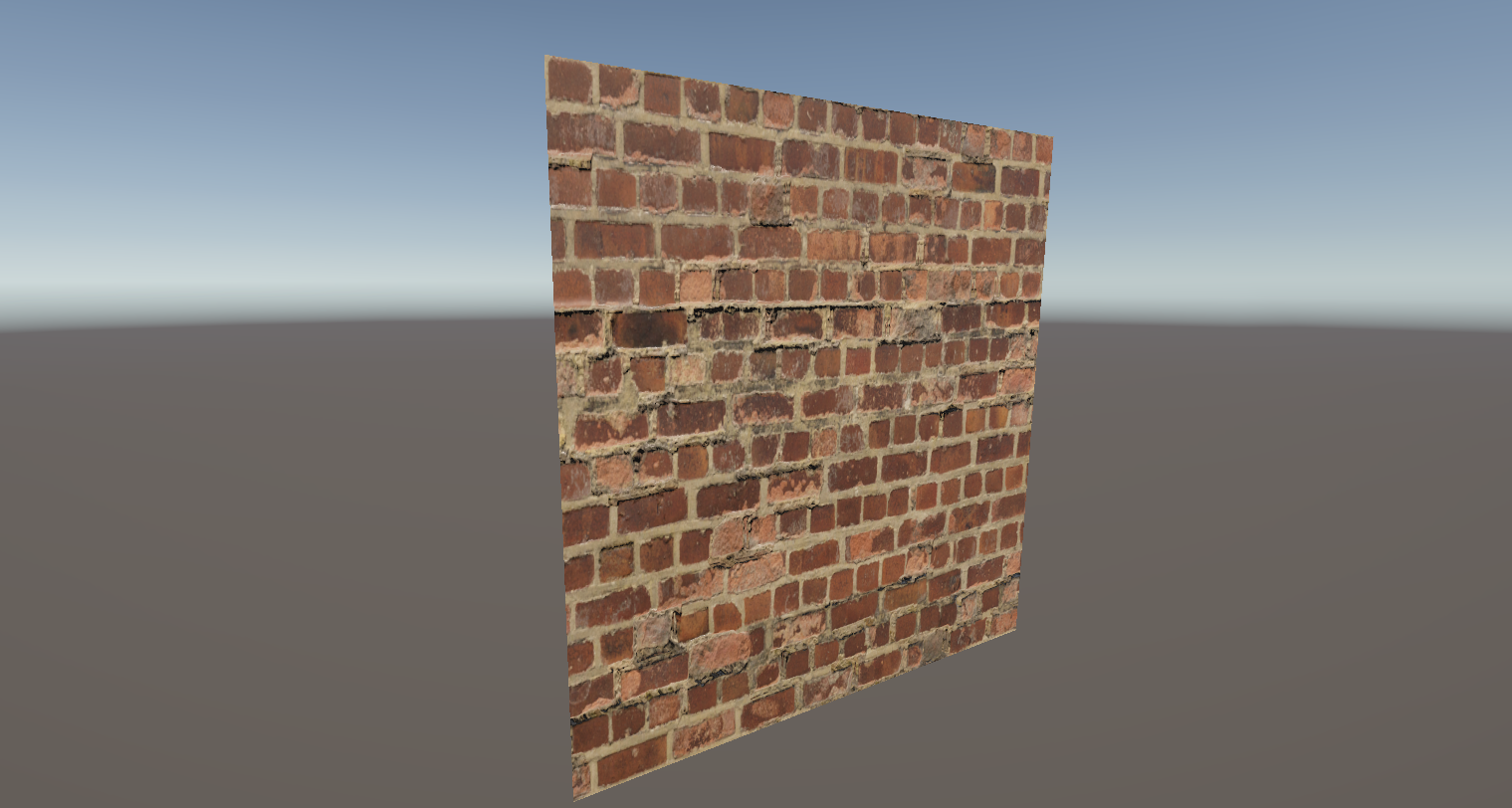
The parallax effect is a lot more evident in motion. If you wanted to be hardcore then you could actually use high-poly tessellation and physically move the surface vertices based on the height map values, but that’s quite expensive.
Occlusion
Finally, we have the Occlusion Map, which models ambient light along edges or crevices of an object.
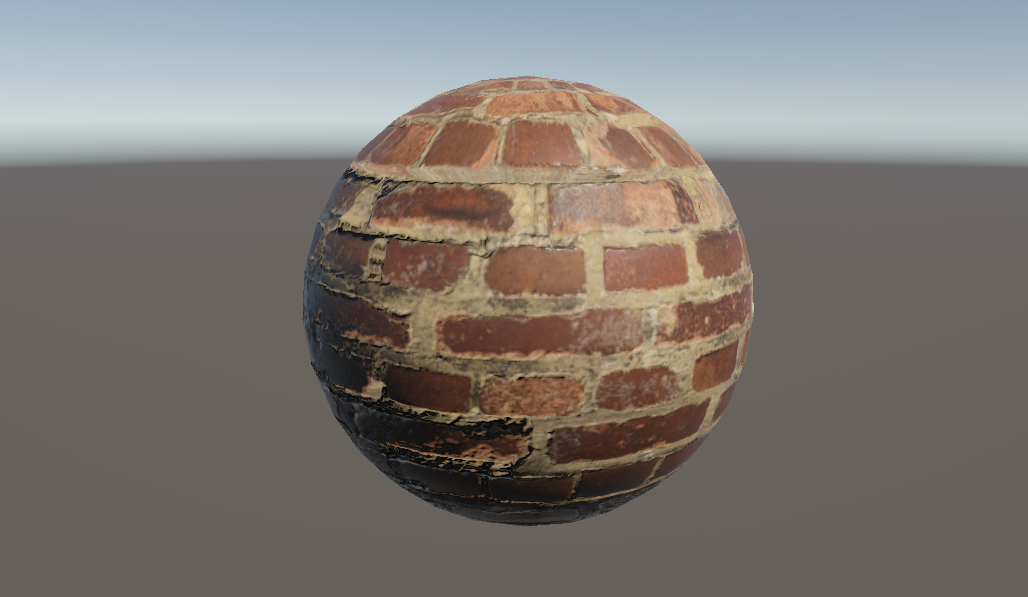
Intricate surface details like cracks have an occlusion value of 0 since light can’t reach inside, but most of the surface will have an occlusion of 1 as they are fully lit.
These are the six (or seven) primary texture maps you’ll see for PBR materials.
Emission
That said, PBR lighting works on the principle of conservation of energy, where the light reflecting off an object should never exceed the light shining onto an object. The exception is emissive materials, which produce their own light.
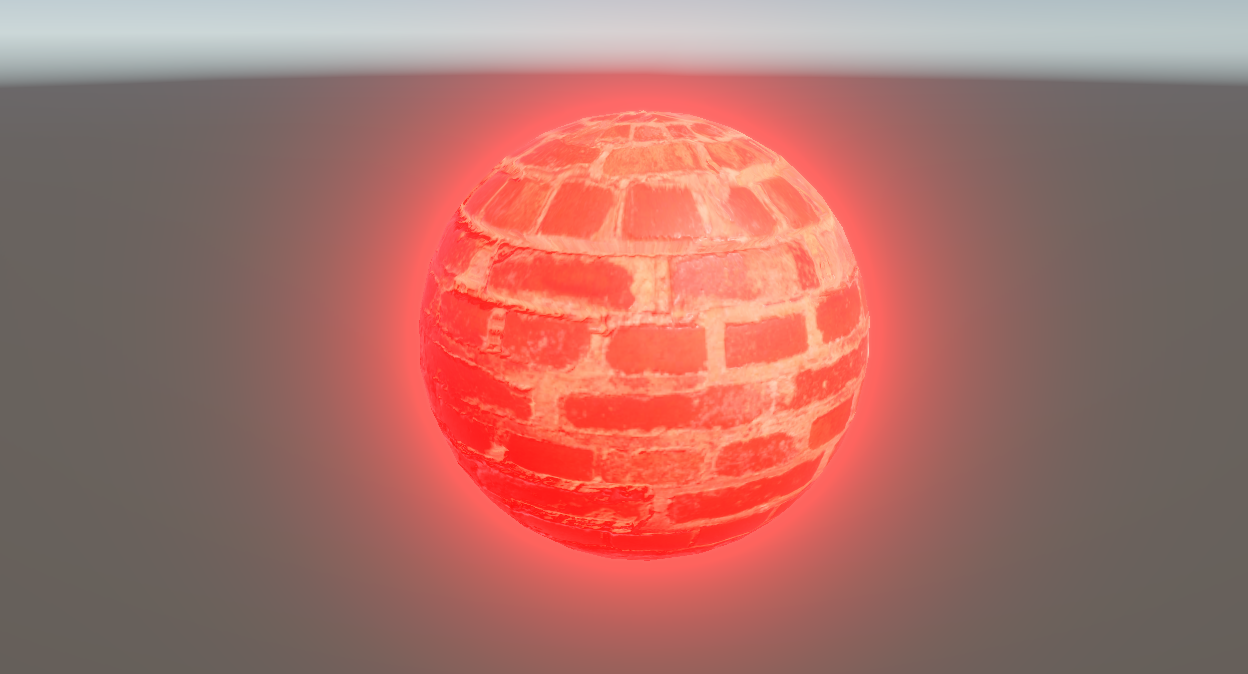
We can specify a bonus Emissive Map to represent the color of the emissive light, so that these objects can still appear brightly lit even when they are in total shadow.
Physically Based Shaders
Let’s write a PBR shader. I’ll copy the AdditionalLighting shader from Part 6 and name the copy PBR. Remember to rename the shader on the first line and change it to Basics/PBR.
Properties
First, let’s set up the shader properties. Let’s remove everything besides the first four properties – we no longer need any properties that manipulate the behavior of the lighting directly. Instead, we’ll be adding lots of different textures.
Properties
{
    _BaseColor("Base Color", Color) = (1, 1, 1, 1)
    _BaseTexture("Base Texture", 2D) = "white" {}
    _NormalTexture("Normal Texture", 2D) = "bump" {}
    _NormalStrength("Normal Strength", Range(0.0, 2.0)) = 1.0
}
I want to make a quick change to the _NormalTexture. For our finished PBR shader, I want to use the tiling and offset values from the _BaseTexture when sampling every texture map, since typically if I want to tile the base map twice over, I would also want to tile the normal map, and the metallic map, and so on for every PBR map.
This is what it looks like when you don’t tile them in lockstep with one another:
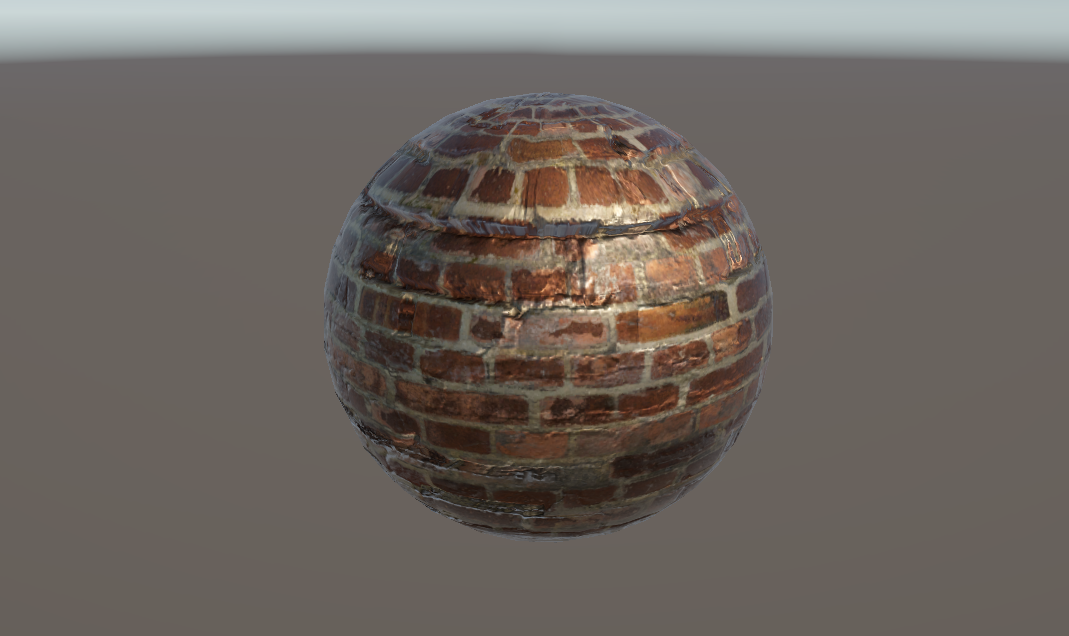
With that in mind, I’ll add a little attribute called [NoScaleOffset] just before the declaration for _NormalTexture, which removes the tiling and offset vectors in the material Inspector window. We can also use a second attribute called [Normal], which provides a warning in the Inspector if you try to use a texture which isn’t marked as a normal map.
[NoScaleOffset] [Normal] _NormalTexture("Normal Texture", 2D) = "bump" {}
Now, let’s add properties for all the texture maps to the Properties block.
Let’s add a _MetallicMap for the amount of metallicness at each part of the surface. It’s convenient to have both the texture map and a global slider which lets us configure the overall level of metallicness, so I’ll also add a _Metallic float property which is a Range from 0 to 1, with a default of 0 meaning it’s a non-metal.
[NoScaleOffset] _MetallicMap("Metallic", 2D) = "white" {}
_Metallic("Metallic", Range(0.0, 1.0)) = 0.0
Then, we’ll also include the _SpecularMap. I know I said previously that PBR shaders choose between the metallic and specular workflows, but we’ll deal with that choice later - we still need to include both options here in the Properties block. Along with the map, I’ll include a _SpecularColor property as a global control akin to the _Metallic property we just added. This time, it’s a Color property of course, and the default will be greyscale 0.2.
[NoScaleOffset] _SpecularMap("SpecularMap", 2D) = "white" {}
_SpecularColor("Specular Color", Color) = (0.2, 0.2, 0.2, 1.0)
Next comes the _SmoothnessMap and the corresponding _Smoothness value which ranges from 0 to 1. This can have a default of 0.5 which represents middling smoothness.
[NoScaleOffset] _SmoothnessMap("Smoothness Map", 2D) = "white" {}
_Smoothness("Smoothness", Range(0.0, 1.0)) = 0.5
Now we can add the _HeightMap and _HeightMapStrength properties which are set up similarly, with a default value of 0 representing no raised surfaces, the _OcclusionMap and _OcclusionStrength properties, which in this context lets us choose how strongly to apply the occlusion map values, and an _EmissionMap and _EmissionColor property pair for an extra amount of color to add after applying shadows. The _EmissionColor property can use an attribute called [HDR], which lets us drive the color values above the usual 0-1 range and make them glow if we are using a bloom post processing filter.
[NoScaleOffset] _HeightMap("Height Map", 2D) = "white" {}
_HeightMapStrength("Height Map Strength", Range(0.0, 0.1)) = 0.0

[NoScaleOffset] _OcclusionMap("Occlusion Map", 2D) = "white" {}
_OcclusionStrength("Occlusion Strength", Range(0.0, 1.0)) = 1.0

[NoScaleOffset] _EmissionMap("Emission Map", 2D) = "white" {}
[HDR] _EmissionColor("Emission Color", Color) = (0.0, 0.0, 0.0, 1.0)
That’s a lot of properties, so let’s now move on to the UniversalForward pass body.
Subscribe to my Patreon for perks including early access, your name in the credits of my videos, and bonus access to several premium shader packs!

Main Pass
Thankfully, quite a lot of the code from ther AdditionalLighting shader can stay the same here. I do, however, want to move all the keyword declarations above the include files, since in the previous Part’s video, I neglected to account for some of those include files using keyword branching based on these keywords. I don’t think it broke anything but it’s worth keeping in mind that sometimes include files need keywords to be declared before their inclusion!
#pragma multi_compile _ _MAIN_LIGHT_SHADOWS _MAIN_LIGHT_SHADOWS_CASCADE _MAIN_LIGHT_SHADOWS_SCREEN
#pragma multi_compile_fragment _ _SHADOWS_SOFT _SHADOWS_SOFT_LOW _SHADOWS_SOFT_MEDIUM _SHADOWS_SOFT_HIGH
#pragma multi_compile_fragment _ _LIGHT_COOKIES
#pragma multi_compile _ _ADDITIONAL_LIGHTS
#pragma multi_compile _ _ADDITIONAL_LIGHT_SHADOWS
#pragma multi_compile _ _FORWARD_PLUS   // Use _CLUSTER_LIGHT_LOOP in Unity 6.1 and above.

#include "Packages/com.unity.render-pipelines.universal/ShaderLibrary/Core.hlsl"
#include "Packages/com.unity.render-pipelines.universal/ShaderLibrary/Lighting.hlsl"
Let’s add a new include file called ParallaxMapping.hlsl from the SRP Core shader library (this is different to the URP shader library, and contains files that are shared between all SRPs including HDRP). ParallaxMapping.hlsl contains functions that will help us modify the UVs based on the height map.
#include "Packages/com.unity.render-pipelines.universal/ShaderLibrary/Core.hlsl"
#include "Packages/com.unity.render-pipelines.core/ShaderLibrary/ParallaxMapping.hlsl"
#include "Packages/com.unity.render-pipelines.universal/ShaderLibrary/Lighting.hlsl"
Then, we can include all the shader properties in the CBUFFER. This is pretty straightforward to do – just remove the four we no longer need because we removed them from the Properties block, and add the new ones. I’ll also include the TEXTURE2D and SAMPLER declarations for each of the new texture maps: metallic, specular, smoothness, height, occlusion, and emission.
CBUFFER_START(UnityPerMaterial)
    float4 _BaseColor;
    float4 _BaseTexture_ST;
    float _NormalStrength;
    float _Metallic;
    float3 _SpecularColor;
    float _Smoothness;
    float _HeightMapStrength;
    float _OcclusionStrength;
    float3 _EmissionColor;
CBUFFER_END

TEXTURE2D(_BaseTexture);
SAMPLER(sampler_BaseTexture);

TEXTURE2D(_SpecularMap);
SAMPLER(sampler_SpecularMap);

TEXTURE2D(_MetallicMap);
SAMPLER(sampler_MetallicMap);

TEXTURE2D(_SmoothnessMap);
SAMPLER(sampler_SmoothnessMap);

TEXTURE2D(_NormalTexture);
SAMPLER(sampler_NormalTexture);

TEXTURE2D(_HeightMap);
SAMPLER(sampler_HeightMap);

TEXTURE2D(_OcclusionMap);
SAMPLER(sampler_OcclusionMap);

TEXTURE2D(_EmissionMap);
SAMPLER(sampler_EmissionMap);
Amazingly, the appdata and v2f structs and the vert function can stay the same as the AdditionalLighting shader, but we’re gonna write the fragment shader from scratch. First, we’ll set up those parallax-mapped UVs, since we need them before we sample any of the other textures. This involves getting the view direction – which points from the camera to the pixel being drawn – and converting it to tangent space.
We can get the world-space view direction from the v2f struct and normalize, then to convert it to tangent space, we use a new function called GetViewDirectionTangentSpace from the ParallaxMapping.hlsl include file. It takes the world-space tangent and normal vectors as inputs alongside the world-space view direction. Then, we can call a function called ParallaxMapping which calculates the amount of offset to use for the UVs.
Its first parameter is something a bit different to what we’ve seen before – we need to pass the _HeightMap texture and its sampler as a parameter, which we can do with a macro called TEXTURE2D_ARGS. Then, we need to pass the tangent-space view direction, the _HeightMapStrength, and the original UV coordinates. The result can be added to the UVs, which we’ll use later to sample each texture.
float4 frag(v2f i) : SV_TARGET
{
    float3 viewDirWS = normalize(i.viewWS);
    float3 viewDirTS = GetViewDirectionTangentSpace(i.tangentWS, i.normalWS, viewDirWS);

    i.uv += ParallaxMapping(TEXTURE2D_ARGS(_HeightMap, sampler_HeightMap), viewDirTS, _HeightMapStrength, i.uv);

    ...
}
Next, I’ll skip straight to the final line of the shader, and spoiler alert, we’ll be using a function called UniversalFragmentPBR from Lighting.hlsl which takes in a ton of information about the surface, and applies PBR lighting. Under the hood, Unity uses a Bidirectional Reflectance Distribution Function based on the Cook-Torrance BRDF, named after its two creators.
A BRDF is a fancy term for a kind of function which models outgoing light based on incoming light, surface properties, and viewing direction. And that’s something we’ve seen before, because that’s what the Phong reflectance model was doing in Part 6. Cook-Torrance is just a different sort of BRDF which is physically-based, and enforces the conservation of energy.
The specular component of this BRDF uses the following function:
\[r_s = \frac{D \cdot G \cdot F}{4(n \cdot l) (n \cdot v)}\]which itself contains the Normal Distribution Function, Geometry Shadow-Masking Function, and Fresnel Function. Each one is a little complex so I won’t go into much detail here, since this isn’t really a tutorial about BRDFs per se.
The UniversalFragmentPBR function takes in two structs called InputData and SurfaceData respectively. We briefly saw InputData in the previous Part because we needed it to access lights in Forward+, but I said we’d learn more about it now. And here we are! Although we’ll handle the SurfaceData first.
Subscribe to my Patreon for perks including early access, your name in the credits of my videos, and bonus access to several premium shader packs!
SurfaceData
This struct is defined in its own HLSL file, which is included within BRDF.hlsl, which in turn is included within Lighting.hlsl, and it contains all these members.
struct SurfaceData
{
    half3 albedo;
    half3 specular;
    half  metallic;
    half  smoothness;
    half3 normalTS;
    half3 emission;
    half  occlusion;
    half  alpha;
    half  clearCoatMask;
    half  clearCoatSmoothness;
};
Its purpose is to encapsulate the physical properties of the surface itself. Let’s start by creating a new instance of the struct and zeroing out each of its members by casting just a number 0.
float4 frag(v2f i) : SV_TARGET
{
    float3 viewDirWS = normalize(i.viewWS);
    float3 viewDirTS = GetViewDirectionTangentSpace(i.tangentWS, i.normalWS, viewDirWS);

    i.uv += ParallaxMapping(TEXTURE2D_ARGS(_HeightMap, sampler_HeightMap), viewDirTS, _HeightMapStrength, i.uv);

    SurfaceData surfaceData = (SurfaceData)0;
First, we can sample the _BaseTexture and multiply it by _BaseColor in the same manner as we’ve been doing this whole time, and then we can start filling the surfaceData struct by setting the albedo entry with the RGB components of the base color, and the alpha entry using the base color alpha.
SurfaceData surfaceData = (SurfaceData)0;

float4 baseColor = SAMPLE_TEXTURE2D(_BaseTexture, sampler_BaseTexture, i.uv) * _BaseColor;
surfaceData.albedo = baseColor.rgb;
surfaceData.alpha = baseColor.a;
Next, let’s deal with the metallic and specular values. For now, I’m only going to consider the metallic workflow, but I’ll come back later and add code for the specular workflow. We can set the metallic entry by sampling the _MetallicMap and taking only its red component, since it’s meant to be greyscale, and multiplying by the _Metallic property, and we can set the specular entry to zero since we don’t need it.
surfaceData.metallic = SAMPLE_TEXTURE2D(_MetallicMap, sampler_MetallicMap, i.uv).r * _Metallic;
surfaceData.specular = 0.0f;
Then, let’s handle the smoothness in a similar manner – just sample the _SmoothnessMap, get the red component, multiply by _Smoothness, and assign the result to the surfaceData smoothness entry.
surfaceData.smoothness = SAMPLE_TEXTURE2D(_SmoothnessMap, sampler_SmoothnessMap, i.uv).r * _Smoothness;
Next on the plate is the occlusion entry, which works a bit differently. The _OcclusionStrength determines how strongly the _OcclusionMap is applied, but the default value of occlusion when the map isn’t being used should be 1, representing a surface without any small gaps or edges. With that in mind, let’s lerp between 1 and the _OcclusionMap sample’s red channel value, based on the value of _OcclusionStrength.
surfaceData.occlusion = lerp(1.0f, SAMPLE_TEXTURE2D(_OcclusionMap, sampler_OcclusionMap, i.uv).r, _OcclusionStrength);
The normal vector works much the same as it did in the lighting shaders from the previous Part, but we just need it in tangent space here, so we only need to sample the _NormalTexture and apply _NormalStrength using the UnpackNormalScale library function, then normalize it before assigning to the surfaceData normalTS entry.
float3 normalTS = UnpackNormalScale(SAMPLE_TEXTURE2D(_NormalTexture, sampler_NormalTexture, i.uv), _NormalStrength);
surfaceData.normalTS = normalize(normalTS);
Lastly, we have the emission, which is just the result of sampling the _EmissionMap and multiplying its rgb components by the _EmissionColor. With that, we have filled every parameter of surfaceData that we need.
surfaceData.emission = SAMPLE_TEXTURE2D(_EmissionMap, sampler_EmissionMap, i.uv).rgb * _EmissionColor;
There are two extra variables in the SurfaceData struct for a clear coat which are used for simulating a thin layer of paint on an object, but we’re not using that so we can ignore them.
Now we can deal with the InputData struct.
InputData
This one can be found in the URP shader library inside Input.hlsl which is included within Core.hlsl, and it contains vectors and coordinates used inside lighting calculations.
struct InputData
{
    float3  positionWS;
    float4  positionCS;
    float3  normalWS;
    half3   viewDirectionWS;
    float4  shadowCoord;
    half    fogCoord;
    half3   vertexLighting;
    half3   bakedGI;
    float2  normalizedScreenSpaceUV;
    half4   shadowMask;
    half3x3 tangentToWorld;

#if defined(DEBUG_DISPLAY)
    ...
#endif
};
The ones contained within the DEBUG_DISPLAY preprocessor toggle aren’t important to us.
Some of these are quite easy to set up, such as the positionCS and positionWS entries, since we can grab those straight from the v2f struct.
surfaceData.emission = SAMPLE_TEXTURE2D(_EmissionMap, sampler_EmissionMap, i.uv).rgb * _EmissionColor;

InputData inputData = (InputData)0;

inputData.positionCS = i.positionCS;
inputData.positionWS = i.positionWS;
The next one, tangentToWorld, is essentially the transformation matrix that we used last time to convert tangent-space normal vectors from the normal map sample into world-space normals, just expressed a bit differently. We still get the bitangent vector in the same way, but now we create a 3x3 matrix representing the transformation, instead of applying it directly to the normal sample like we did last time.
float3 normalWS = NormalizeNormalPerPixel(i.normalWS);
float3 bitangent = cross(normalWS.xyz, i.tangentWS.xyz) * i.tangentWS.w * unity_WorldTransformParams.w;
inputData.tangentToWorld = float3x3(i.tangentWS.xyz, bitangent.xyz, normalWS.xyz);
Speaking of which, the next entry is the world-space normal vector, normalWS, and here we can use a library function called TransformTangentToWorld to apply the tangentToWorld matrix to the tangent-space normal map values, which are the two inputs to the function.
inputData.normalWS = TransformTangentToWorld(surfaceData.normalTS, inputData.tangentToWorld);
Then, we have the viewDirectionWS which was the first thing we calculated in the fragment shader, followed by the shadowCoord and shadowMask which we can set up the same as in the previous Part using TransformWorldToShadowCoord and SAMPLE_SHADOWMASK respectively.
The last thing we need is the normalizedScreenSpaceUV, which you might remember from the previous Part too as we used InputData solely to feed this and positionWS to the light loop. Once again, we can use the GetNormalizedScreenSpaceUV function which takes the positionCS as input.
inputData.viewDirectionWS = viewDirWS;
inputData.shadowCoord = TransformWorldToShadowCoord(i.positionWS);
inputData.shadowMask = SAMPLE_SHADOWMASK(i.dynamicLightmapUV);
inputData.normalizedScreenSpaceUV = GetNormalizedScreenSpaceUV(i.positionCS);

return UniversalFragmentPBR(inputData, surfaceData);
Finally, we call the UniversalFragmentPBR function using the inputData and surfaceData as parameters, and we’re done with the base version of the PBR shader! Although since we changed the CBUFFER while writing it, I want to quickly copy-paste it over the CBUFFER being used in the DepthNormals pass so that our shader still adheres to the SRP Batcher restrictions.
Tags
{
    "LightMode" = "DepthNormals"
}

ZWrite On

HLSLPROGRAM
#pragma vertex depthNormalsVert
#pragma fragment depthNormalsFrag

#include "Packages/com.unity.render-pipelines.universal/ShaderLibrary/Core.hlsl"

CBUFFER_START(UnityPerMaterial)
    float4 _BaseColor;
    float4 _BaseTexture_ST;
    float _NormalStrength;
    float _Metallic;
    float3 _SpecularColor;
    float _Smoothness;
    float _HeightMapStrength;
    float _OcclusionStrength;
    float3 _EmissionColor;
CBUFFER_END
In the Scene View, we can take a look at our objects and see that PBR lighting is working pretty much as we expected. Although we can get the old Phong-based shader to look similar in many cases, it’s generally more intuitive to work with PBR properties on the material. Where it starts to diverge, I think, is if we want a metallic object, as those are quite difficult to model nicely with a Phong shader, needing lots of tweaking of values, whereas with the PBR model, it’s just a slider.
Isn’t this exactly what you’d expect a metallic ball of brick to look like? It feels like it weighs a ton.
Subscribe to my Patreon for perks including early access, your name in the credits of my videos, and bonus access to several premium shader packs!
Roughness and Specular Workflow
We’ve done a lot of work in this shader but there are two loose ends I want to wrap up. Firstly, there’s the specular workflow that we currently don’t have access to.
Secondly, there’s a wrinkle with the smoothness map – essentially, many places you can get PBR texture maps will give you a roughness map instead of smoothness. It’s simple to convert one to the other, but we do need to account for it.
I’ll add two new properties which look a bit different to usual. One can be called _UseSpecularSetup, and it will be an Integer with a default value of 0 meaning it is set off to start with. What’s new here is that we can use an attribute called Toggle to turn this into a tickbox in the material Inspector, with an optional parameter to automatically set a shader keyword whenever we change the property value. That keyword will be called _SPECULAR_SETUP, and we can branch on this keyword to choose between the metallic or specular workflows.
[Toggle(_SPECULAR_SETUP)] _UseSpecularSetup("Use Specular Setup", Integer) = 0

[NoScaleOffset] _MetallicMap("Metallic", 2D) = "white" {}
_Metallic("Metallic", Range(0.0, 1.0)) = 0.0

[NoScaleOffset] _SpecularMap("SpecularMap", 2D) = "white" {}
_SpecularColor("Specular Color", Color) = (0.2, 0.2, 0.2, 1.0)
Similarly, we’ll add a property called _ConvertFromRoughness, which can also be an Integer with default 0. It’s worth adding that a default of anything 1 or above will set the tickbox on by default. The toggle keyword for this property can be called _CONVERT_FROM_ROUGHNESS, and we’re going to use it to choose how to read the texture fed into _SmoothnessMap.
[NoScaleOffset] _SmoothnessMap("Smoothness Map", 2D) = "white" {}
_Smoothness("Smoothness", Range(0.0, 1.0)) = 0.5
[Toggle(_CONVERT_FROM_ROUGHNESS)] _ConvertFromRoughness("Convert From Roughness", Integer) = 0
For both of these new keywords, we can define them in HLSL with the shader_feature_local type, which to recap from last time, shader_feature will compile only the shader variants which are set active in the material at build time, and local just means the keywords are specific to this shader, as opposed to global keywords such as _ADDITIONAL_LIGHTS which are toggled across all materials by URP. Remember to include an extra little underscore to represent a null keyword when it’s meant to be switched off.
#pragma multi_compile _ _MAIN_LIGHT_SHADOWS _MAIN_LIGHT_SHADOWS_CASCADE _MAIN_LIGHT_SHADOWS_SCREEN
#pragma multi_compile_fragment _ _SHADOWS_SOFT _SHADOWS_SOFT_LOW _SHADOWS_SOFT_MEDIUM _SHADOWS_SOFT_HIGH
#pragma multi_compile_fragment _ _LIGHT_COOKIES
#pragma multi_compile _ _ADDITIONAL_LIGHTS
#pragma multi_compile _ _ADDITIONAL_LIGHT_SHADOWS
#pragma multi_compile _ _FORWARD_PLUS   // Use _CLUSTER_LIGHT_LOOP in Unity 6.1 and above.

#pragma shader_feature_local _ _CONVERT_FROM_ROUGHNESS
#pragma shader_feature_local _ _SPECULAR_SETUP
We can branch on the _SPECULAR_SETUP keyword with #ifdef, and choose which one of the metallic and specular textures to declare for this pass, since they are used mutually exclusively.
#ifdef _SPECULAR_SETUP
    TEXTURE2D(_SpecularMap);
    SAMPLER(sampler_SpecularMap);
#else
    TEXTURE2D(_MetallicMap);
    SAMPLER(sampler_MetallicMap);
#endif
Later in the fragment shader, we can branch again to choose which texture to sample and how to set the values of metallic and specular for the surfaceData struct. We already wrote the code for the metallic workflow, but for the specular workflow, we sample _SpecularMap and multiply its rgb components by _SpecularColor, then set metallic to zero since we don’t use it.
#ifdef _SPECULAR_SETUP
    surfaceData.metallic = 0.0f;
    surfaceData.specular = SAMPLE_TEXTURE2D(_SpecularMap, sampler_SpecularMap, i.uv).rgb * _SpecularColor;
#else
    surfaceData.metallic = SAMPLE_TEXTURE2D(_MetallicMap, sampler_MetallicMap, i.uv).r * _Metallic;
    surfaceData.specular = 0.0f;
#endif
Finally, let’s also sort out the smoothness situation. Smoothness is just equal to one minus roughness, so it’s really easy to correct and make our shader available to both kinds of texture map. We can branch on the _CONVERT_FROM_ROUGHNESS keyword, and if it’s off, we run the code we wrote previously where we interpret the input as smoothness, but if it is set, we do one minus the smoothness code. Simple!
#ifdef _CONVERT_FROM_ROUGHNESS
    surfaceData.smoothness = (1.0f - SAMPLE_TEXTURE2D(_SmoothnessMap, sampler_SmoothnessMap, i.uv).r) * _Smoothness;
#else
    surfaceData.smoothness = SAMPLE_TEXTURE2D(_SmoothnessMap, sampler_SmoothnessMap, i.uv).r * _Smoothness;
#endif
I’ve actually been using a roughness map for each of the materials in these screenshots so far, since that’s what ambientCG.com gives me, so I’ll tick the Convert From Roughness option on each of them. Now, the smoothness of the object will appear correct when I change the smoothness slider.
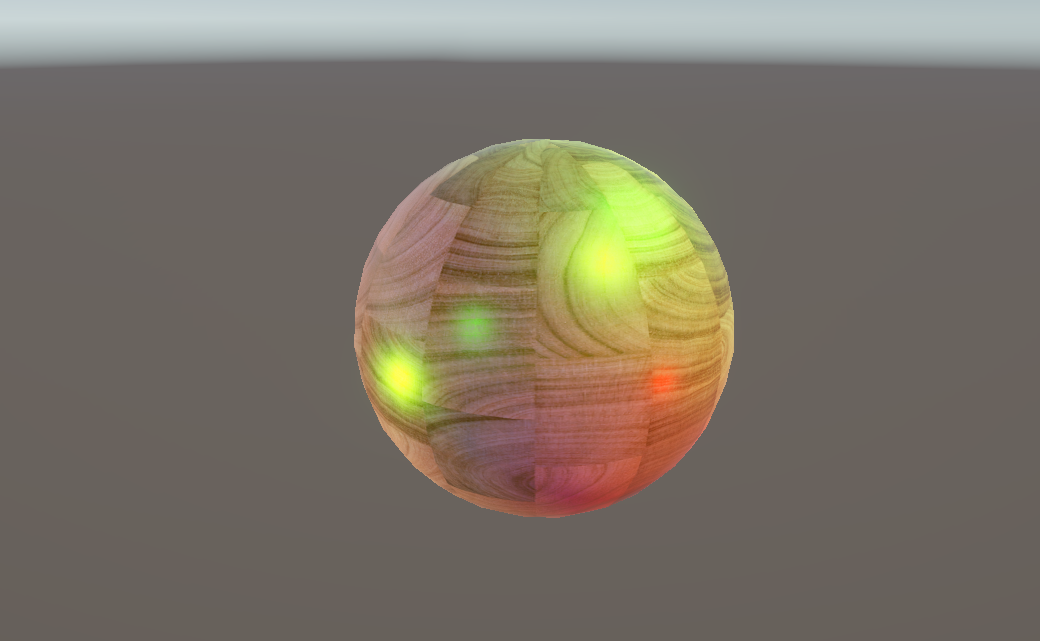
Similarly, we can flip between the metallic and specular workflows and see what each one is capable of. With the metallic workflow, we already saw that it’s easy to change between metallic and non-metallic objects, whereas the specular workflow gives us a nice level of control over the color of specular highlights. In this example, colorful lighting is being used, but the specular color is set to green:
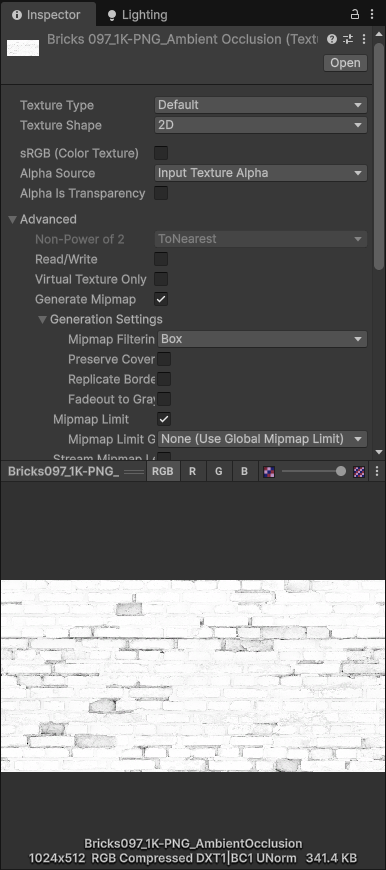
It’s also very important to make sure that you use the correct texture import settings when creating PBR materials. The base and emission maps can use sRGB mode (which can be found near the top of the texture import settings), but maps such as smoothness, occlusion, and metallic which encode non-color data should have this setting disabled, or else your materials will look incorrect.
We learned a lot about Physically Based Rendering in this tutorial, and now we can create materials which describe the physical properties of the surface, and are very easy to tweak for drastically different-looking objects.
In the next Part, we’ll focus on something different and start to think about writing custom Inspector windows for materials which can present shader properties more gracefully than the default GUI and hide any unused properties.
Until next time, have fun making shaders!
Subscribe to my Patreon for perks including early access, your name in the credits of my videos, and bonus access to several premium shader packs!