In Part 1, we learned the very basics of HLSL and ShaderLab, and used them to create an unlit color shader. In Part 2, we are going to incorporate a texture into our shader so that we can show off more color details than we could ever manage with just a single color. Then later, I’ll scroll the texture over time across the surface of the mesh.

A texture is essentially just an image. Usually, it is two-dimensional, and the most basic way to apply a texture to a mesh is to display its colors on the mesh directly. So first, let’s get some textures. You can make them yourself using any image program, or you can grab them from any asset store or somewhere that hosts CC0 textures, which are effectively in the public domain. For CC0 assets, I recommend ambientCG for PBR texture maps and Kenney for mostly 2D sprites.
Next, we need to know how each bit of the texture gets mapped onto the mesh surface. It actually happens the other way round – meshes have some additional data attached to each vertex called its texture coordinate, which is a 2D position on the texture. When we draw a pixel, we interpolate these coordinates between nearby vertices and then grab the color value from that point on the texture. Conventionally, we name the axes along the texture data U and V instead of X and Y respectively to avoid confusion with other coordinate systems, so texture coordinates are also usually called UVs. It’s also worth mentioning that the texture spans the 0-1 range along the U and V axes.

Unity’s primitive meshes like cubes and spheres already have UVs set up for you, although sadly it’s out of the scope of this series to teach you how to add them to your own meshes.
Subscribe to my Patreon for perks including early access, your name in the credits of my videos, and bonus access to several premium shader packs!

Texture-reading Shader
Let’s dive into making the shader. Most of the code is going to be identical to the HelloWorld shader we wrote in Part 1, so I’m going to duplicate it and rename the copy to BasicTexturing. Once you open the shader file, remember to also rename the shader on the first line.
Shader "Basics/BasicTexturing"
{
    Properties
    {
        _BaseColor("Base Color", Color) = (1, 1, 1, 1)
    }
    SubShader
    {
        Tags
        {
            "RenderPipeline" = "UniversalPipeline"
            "RenderType" = "Opaque"
            "Queue" = "Geometry"
        }

        Pass
        {
            HLSLPROGRAM
            #pragma vertex vert
            #pragma fragment frag

            #include "Packages/com.unity.render-pipelines.universal/ShaderLibrary/Core.hlsl"

            float4 _BaseColor;

            struct appdata
            {
                float4 positionOS : POSITION;
            };

            struct v2f
            {
                float4 positionCS : SV_POSITION;
            };

            v2f vert(appdata v)
            {
                v2f o = (v2f)0;

                o.positionCS = TransformObjectToHClip(v.positionOS.xyz);

                return o;
            }

            float4 frag(v2f i) : SV_TARGET
            {
                return _BaseColor;
            }

            ENDHLSL
        }
    }
}
Then, we need to add a second property to the shader. This time, we’ll call it _BaseTexture, the type for 2D textures is just 2D, and then we supply a default value. For a white texture we just say “white” in quotes, or another default value like “black”, “gray”, “red”, or “bump” for normal mapping. After that, we need to open and close a set of curly braces for some reason, although nothing ever gets put in them.
Properties
{
    _BaseColor("Base Color", Color) = (1, 1, 1, 1)
    _BaseTexture("Base Texture", 2D) = "white" {}
}
That’s it for ShaderLab, so next, we need to add the texture property again within the HLSLPROGRAM block. We write TEXTURE2D in all-caps, then put our texture name in parentheses, so _BaseTexture in our case. We can put this code near the existing _BaseColor declaration.
float4 _BaseColor;

TEXTURE2D(_BaseTexture);
We also need to supply a sampler. The process of reading data from a texture is called sampling, and so a sampler tells the graphics API how to perform each texture sample. When you import a texture, you’ve probably seen these Wrap Mode and Filter Mode settings.
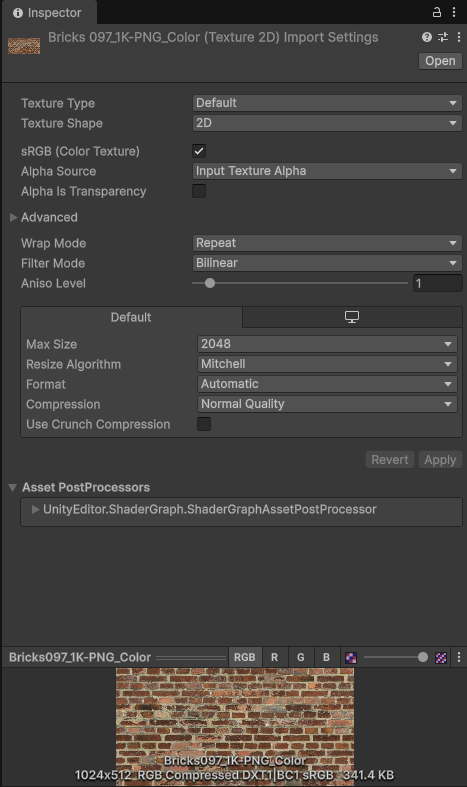
A wrap mode tells Unity what to do if you try to sample with UVs outside the usual 0-1 range, so we can clamp to the edge of the texture or repeat it, and a filter mode defines what happens when sampling a small region of the texture over a big enough surface (i.e. the mesh is close to the screen or the texture is small). Point filtering uses the nearest pixel on the texture, or we can blend linearly between nearby pixels. A sampler bundles the wrap mode and filter mode settings together. To use the wrap and filter mode settings attached to a texture, we can use the name of the texture with sampler prexifed onto it, so sampler_BaseTexture, and the Unity macro we use to define it is just SAMPLER in all-caps, similar to how TEXTURE2D worked.
TEXTURE2D(_BaseTexture);
SAMPLER(sampler_BaseTexture);
The final new variable I want to add here is the tiling and offset of the texture, which are exposed and changeable on many materials such as the default URP Lit shader:
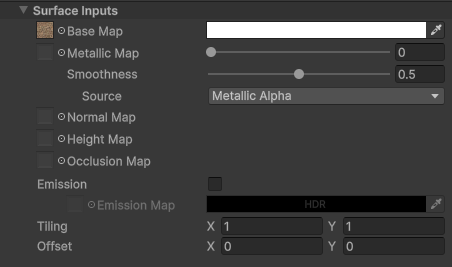
It is a float4, and we use the texture name with _ST on the end, which stands for scaling and translation, so here, it’s _BaseTexture_ST.
float4 _BaseColor;
float4 _BaseTexture_ST;

TEXTURE2D(_BaseTexture);
SAMPLER(sampler_BaseTexture);
Next, let’s read those texture coordinates from the mesh. We feed them into the vertex shader alongside the vertex position in the appdata struct. This time, it’s a float2 which we can just name uv, and the corresponding semantic is TEXCOORD0. Meshes can have multiple UV channels which we can read with different numbers like TEXCOORD1, TEXCOORD2, and so on, but the 0th UV usually contains “regular” UVs for texture sampling. We will be doing the sampling in the fragment shader, so the v2f struct will also need its own entry for the UVs, which will use the same TEXCOORD0 semantic.
struct appdata
{
    float4 positionOS : POSITION;
    float2 uv : TEXCOORD0;
};

struct v2f
{
    float4 positionCS : SV_POSITION;
    float2 uv : TEXCOORD0;
};
The vertex shader needs to read the vertex UVs and pass them to the fragment shader. We can just set the output UVs equal to the input UVs, but I want to take the texture’s tiling and offset into account. For that, Unity provides a macro called TRANSFORM_TEX which applies the values in that _ST variable to the UVs. We pass in the input UVs and the texture name into this macro.
v2f vert(appdata v)
{
    v2f o = (v2f)0;

    o.positionCS = TransformObjectToHClip(v.positionOS.xyz);
    o.uv = TRANSFORM_TEX(v.uv, _BaseTexture);

    return o;
}
When the rasterizer creates pixels from our vertices, it also takes the UVs attached to those vertices and interpolates them. Essentially, a pixel halfway between two vertices gets a UV coordinate halfway between the UV of those vertices.
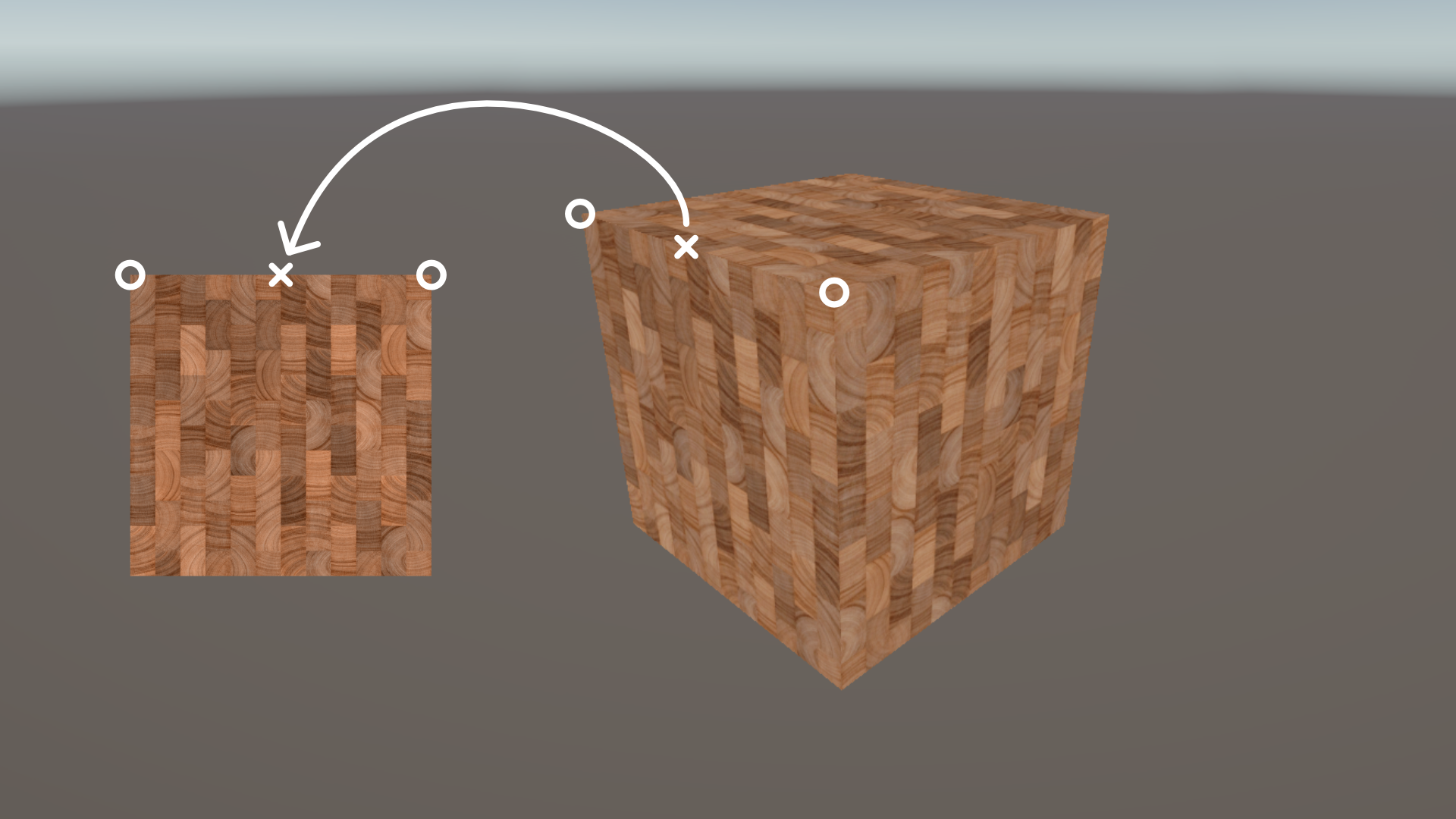
Finally, we can sample the texture inside the fragment shader. We use another macro called SAMPLE_TEXTURE2D and pass in the texture, its sampler, and the set of UV coordinates we’re using. This returns a float4 color value. We can then mix this color with the existing _BaseColor property by multiplying both values and return the result.
float4 frag(v2f i) : SV_TARGET
{
    float4 textureColor = SAMPLE_TEXTURE2D(_BaseTexture, sampler_BaseTexture, i.uv);
    return textureColor * _BaseColor;
}
Now, when we return to the Scene View, we can create a few new materials and assign different textures to them to see what the shader is doing. We are able to modify the tiling and offset of the materials to map the texture differently across the surface of the mesh, or we can change the value of Base Color to see how it looks when it’s blended with the Base Texture.

Our shader is now functional, but I want to go on a bit of side quest before we talk about scrolling textures. When Unity created URP and HDRP, they had the opportunity to optimize the low-level rendering code, resulting in the SRP Batcher, which tries to reduce draw calls and costly data transfers from the CPU to GPU where possible. It’s quite complicated to explain in a beginner series like this, but the short version is that we can use it for a “free” performance gain.
However, we need to modify our shaders to make them compatible with the SRP Batcher. Anything we declare in both the Properties block and HLSL needs to exist in a special constant buffer in HLSL. We start the buffer with CBUFFER_START and pass in the name of the buffer, which is UnityPerMaterial. Then we end the buffer with CBUFFER_END, and that’s it – as long as those properties are sandwiched between these macros, we’ll have SRP Batcher compatibility. Textures work differently, and we can leave those outside the buffer.
CBUFFER_START(UnityPerMaterial)
    float4 _BaseColor;
    float4 _BaseTexture_ST;
CBUFFER_END
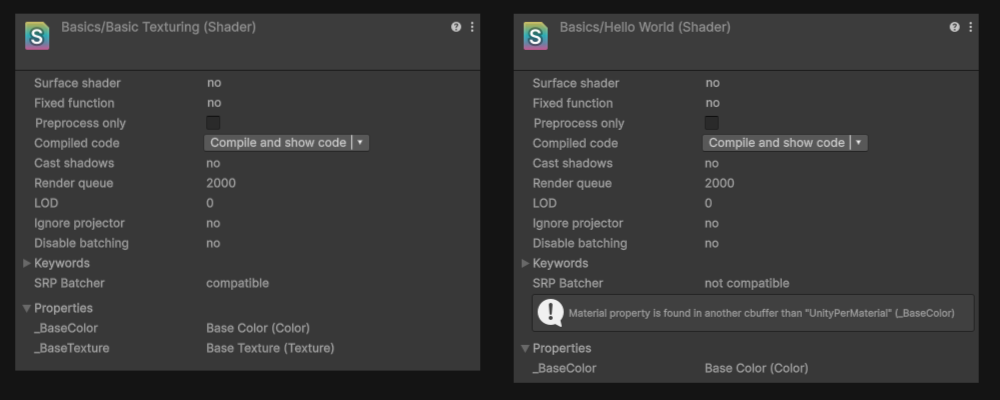
Back in Unity, we can easily see if a shader supports SRP Batcher by clicking on it. Our BasicTexturing shader supports it, but HelloWorld from Part 1 does not since we never added the buffer to it. There’s a helpful message telling you what broke compatibility.
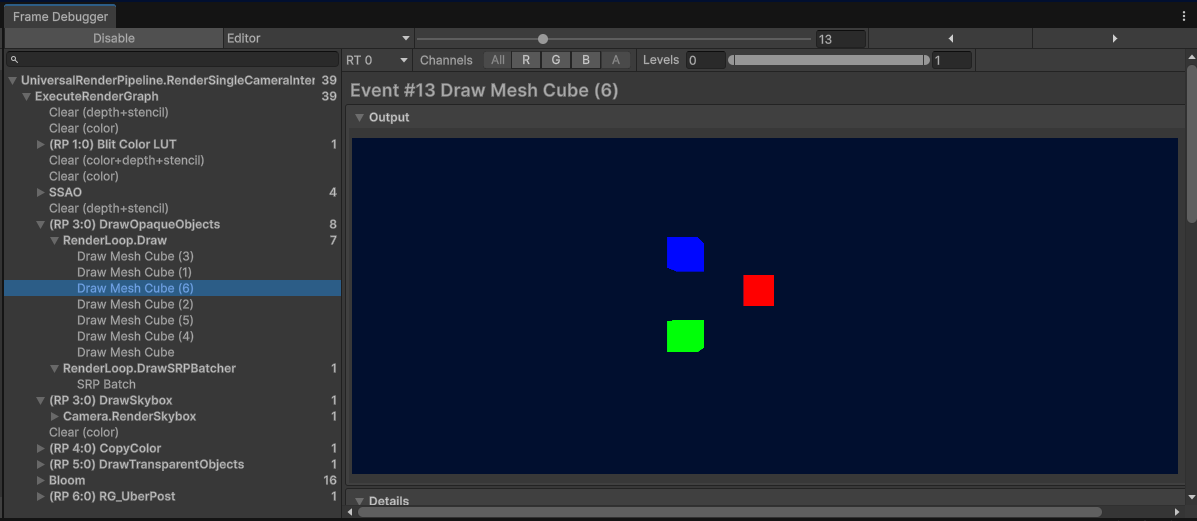
We can quickly see the practical difference using the Frame Debugger, which we can open via Window -> Analysis -> Frame Debugger. When you click Enable, it lists every draw call made during each frame and can show us what the screen texture looks like after each call. In my scene, I have some cubes using HelloWorld and others using BasicTexturing. Under DrawOpaqueObjects, you’ll see Draw and DrawSRPBatcher. Under Draw, there are several calls, and when we click on each one, you’ll see a single HelloWorld cube being drawn one at a time.
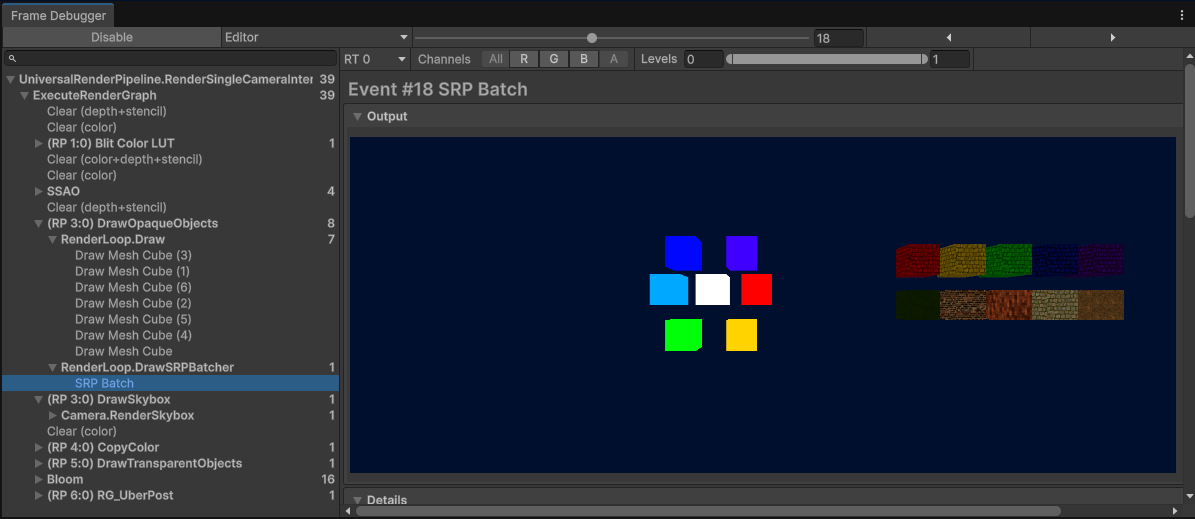
The BasicTexturing cubes, on the other hand, use the SRP Batcher so they all appear at once in one draw call. Neat, right?
Anyway, that’s the side quest over, but I’m going to be using the SRP Batcher in shaders from now on so I wanted to actually explain what it does. Here’s the full BasicTexturing shader:
Shader "Basics/BasicTexturing"
{
    Properties
    {
        _BaseColor("Base Color", Color) = (1, 1, 1, 1)
        _BaseTexture("Base Texture", 2D) = "white" {}
    }
    SubShader
    {
        Tags
        {
            "RenderPipeline" = "UniversalPipeline"
            "RenderType" = "Opaque"
            "Queue" = "Geometry"
        }

        Pass
        {
            HLSLPROGRAM
            #pragma vertex vert
            #pragma fragment frag

            #include "Packages/com.unity.render-pipelines.universal/ShaderLibrary/Core.hlsl"

            CBUFFER_START(UnityPerMaterial)
                float4 _BaseColor;
                float4 _BaseTexture_ST;
            CBUFFER_END

            TEXTURE2D(_BaseTexture);
            SAMPLER(sampler_BaseTexture);

            struct appdata
            {
                float4 positionOS : POSITION;
                float2 uv : TEXCOORD0;
            };

            struct v2f
            {
                float4 positionCS : SV_POSITION;
                float2 uv : TEXCOORD0;
            };

            v2f vert(appdata v)
            {
                v2f o = (v2f)0;

                o.positionCS = TransformObjectToHClip(v.positionOS.xyz);
                o.uv = TRANSFORM_TEX(v.uv, _BaseTexture);

                return o;
            }

            float4 frag(v2f i) : SV_TARGET
            {
                float4 textureColor = SAMPLE_TEXTURE2D(_BaseTexture, sampler_BaseTexture, i.uv);
                return textureColor * _BaseColor;
            }

            ENDHLSL
        }
    }
}
Next, let’s scroll the texture over time.
Subscribe to my Patreon for perks including early access, your name in the credits of my videos, and bonus access to several premium shader packs!
Scrolling Textures
I want to leave the BasicTexturing shader alone, so I’ll duplicate it and then name the copy ScrollingTextures. I’ll also remember to rename the shader on the first line.
Shader "Basics/ScrollingTextures"
{
    // Copy of BasicTexturing shader here.
}
This shader is going to need another property to control how far the texture gets scrolled over time, called _ScrollSpeed. This property will use the Vector type, because I want to use different speeds for the horizontal and vertical directions. The property declaration for Vector types is very similar to Color types, with four parameters for the default value, but the annoying thing is that you need to declare all four, even if you don’t intend to use all of them. I’ll make the default value 0 for each component.
_ScrollSpeed("Scroll Speed", Vector) = (0, 0, 0, 0)
In HLSL, we can then declare the property again inside the CBUFFER, but this time, we use float2 as the type because we only need the x and y components.
CBUFFER_START(UnityPerMaterial)
    float4 _BaseColor;
    float4 _BaseTexture_ST;
    float2 _ScrollSpeed;
CBUFFER_END
Let’s use this property in the fragment shader. The UVs we used to sample the texture are a 2D vector, and our scroll speed is also a 2D vector, so it’s possible to add them together into a new UV variable, although it won’t do anything over time by itself. We can get the amount of time that’s passed since the game started using the _Time variable, which is available to every shader. It actually has four components: the y-component gives you the number of seconds since the game started, then the x-component is 1/20 of that, z is 2 times it, and w is 3 times it. I stick with _Time.y for many of my shaders, which I’ll do here by multiplying it with _ScrollSpeed. I’ll point out here that when we multiply a scalar value like _Time.y with a vector, we multiply each component of the vector with that scalar value and get a vector result. Then I can use my uv variable instead of the input UVs when sampling, and now we have a shader which can scroll textures over time.
float4 frag(v2f i) : SV_TARGET
{
    float2 uv = i.uv + _Time.y * _ScrollSpeed;
    float4 textureColor = SAMPLE_TEXTURE2D(_BaseTexture, sampler_BaseTexture, uv);
    return textureColor * _BaseColor;
}
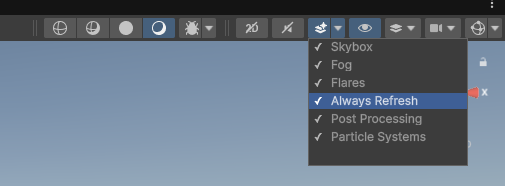
If you use this shader in the Scene View and you don’t see scrolling working as intended once you’ve increased the x- or y-component of Scroll Speed, there are a couple of possible solutions. First, if the scrolling movement is jittery, try using the drop-down above the Scene View and enable the Always Refresh option.
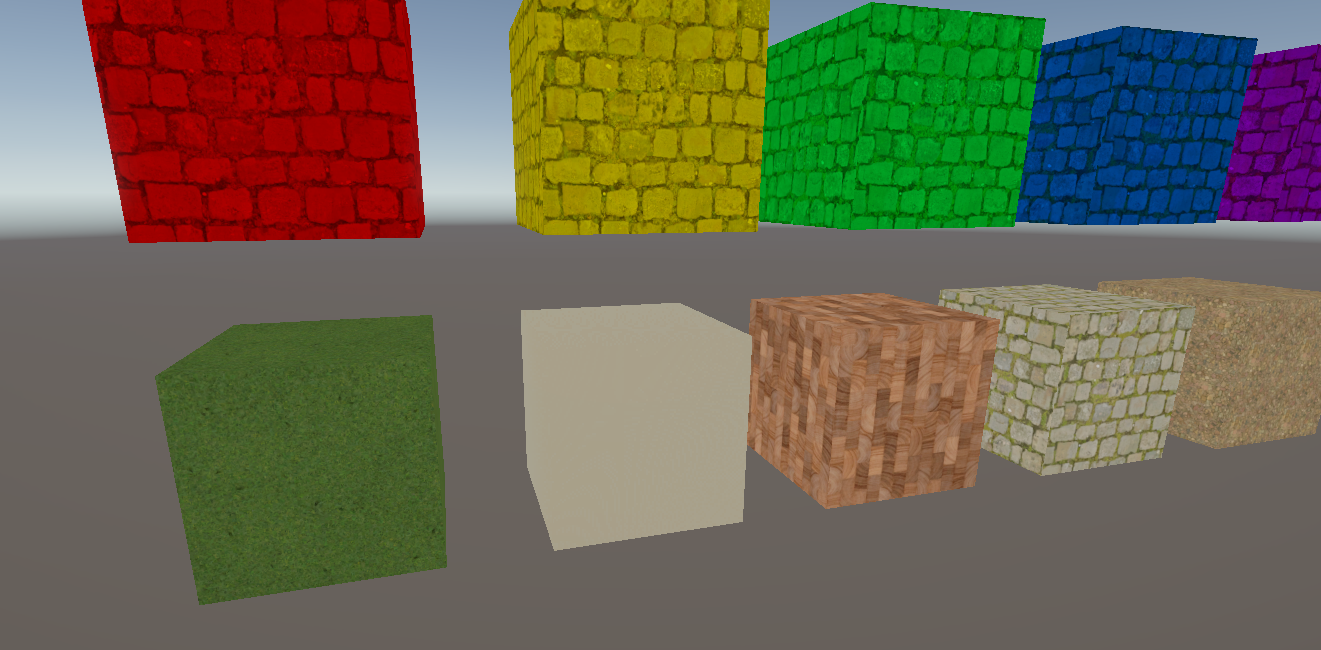
Second, if you don’t see a texture at all, then the source texture asset might have its Wrap Mode set to Clamp. If you change it to Repeat, you should see the texture properly. In this screenshot, I’ve attached a material with ScrollingTextures to the brick cube, but all we see is a sort of beige, because I set its Wrap Mode to Clamp that’s the color of the top-right pixel of the texture.
There is another way to solve that second problem inside the shader. I’ll set this texture’s wrap mode back to Clamp. Then, in the ScrollingTextures shader, I’ll import a second file, this time from Unity’s Core SRP shader library rather than URP, called GlobalSamplers.hlsl. This is quite a small file (the next code block shows the entire file) and all it does is define a few reusable samplers with common settings we can use in our shaders instead of using, say, sampler_BaseTexture as we did previously.
#ifndef UNITY_CORE_SAMPLERS_INCLUDED
#define UNITY_CORE_SAMPLERS_INCLUDED

// Common inline samplers.
// Separated into its own file for robust including from any other file.
// Helps with sharing samplers between intermediate and/or procedural textures (D3D11 has a active sampler limit of 16).
SAMPLER(sampler_PointClamp);
SAMPLER(sampler_LinearClamp);
SAMPLER(sampler_TrilinearClamp);
SAMPLER(sampler_PointRepeat);
SAMPLER(sampler_LinearRepeat);
SAMPLER(sampler_TrilinearRepeat);

#endif //UNITY_CORE_SAMPLERS_INCLUDED
So, when we sample the texture, I’ll use sampler_LinearRepeat, which forces the shader to use linear filtering and repeat wrap mode, no matter what import settings my textures use.
float4 textureColor = SAMPLE_TEXTURE2D(_BaseTexture, sampler_LinearRepeat, uv);
Using these samplers instead of the ones attached to textures gives you the power to do things like only using point filtering in a pixelation shader, for example. It’s good to know that it’s an option you always have available!
So far, I’ve been following the progression of the Shader Graph Basics series, so in the next part of this series, we’ll look at using transparency in shaders. Until next time, have fun making shaders!
Here’s the ScrollingTextures shader in its entirety (using sampler_LinearRepeat as described above):
Shader "Basics/ScrollingTextures"
{
    Properties
    {
        _BaseColor("Base Color", Color) = (1, 1, 1, 1)
        _BaseTexture("Base Texture", 2D) = "white" {}
        _ScrollSpeed("Scroll Speed", Vector) = (0, 0, 0, 0)
    }
    SubShader
    {
        Tags
        {
            "RenderPipeline" = "UniversalPipeline"
            "RenderType" = "Opaque"
            "Queue" = "Geometry"
        }

        Pass
        {
            HLSLPROGRAM
            #pragma vertex vert
            #pragma fragment frag

            #include "Packages/com.unity.render-pipelines.universal/ShaderLibrary/Core.hlsl"
            #include "Packages/com.unity.render-pipelines.core/ShaderLibrary/GlobalSamplers.hlsl"

            CBUFFER_START(UnityPerMaterial)
                float4 _BaseColor;
                float4 _BaseTexture_ST;
                float2 _ScrollSpeed;
            CBUFFER_END

            TEXTURE2D(_BaseTexture);
            SAMPLER(sampler_BaseTexture);

            struct appdata
            {
                float4 positionOS : POSITION;
                float2 uv : TEXCOORD0;
            };

            struct v2f
            {
                float4 positionCS : SV_POSITION;
                float2 uv : TEXCOORD0;
            };

            v2f vert(appdata v)
            {
                v2f o = (v2f)0;

                o.positionCS = TransformObjectToHClip(v.positionOS.xyz);
                o.uv = TRANSFORM_TEX(v.uv, _BaseTexture);

                return o;
            }

            float4 frag(v2f i) : SV_TARGET
            {
                float2 uv = i.uv + _Time.y * _ScrollSpeed;
                float4 textureColor = SAMPLE_TEXTURE2D(_BaseTexture, sampler_LinearRepeat, uv);
                return textureColor * _BaseColor;
            }

            ENDHLSL
        }
    }
}
Subscribe to my Patreon for perks including early access, your name in the credits of my videos, and bonus access to several premium shader packs!