If you’ve never touched a line of Unity’s ShaderLab language or HLSL, then this is the place to start – we’re going to learn how to write your very first shader which will just display a basic color on our mesh. It’s like the shader version of “Hello, World”.
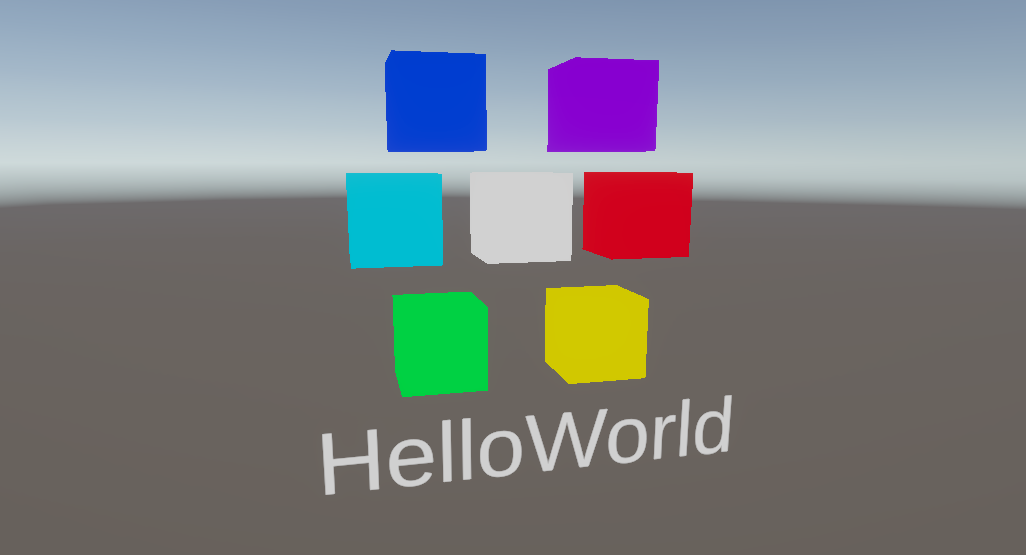
I’ve chosen to use Unity 6.0, and I’ll be working with Universal Render Pipeline. Unfortunately, unlike Shader Graph, the shader libraries for each render pipeline differ quite a lot, so it’s really for the best that you choose a pipeline up-front like this.
ShaderLab Syntax
Let’s start in a fresh project and right-click in the Project View and select Create -> Shader -> Unlit Shader and name the file “HelloWorld”, why not. When you open it up, you’ll see, well, a bunch of garbage really - this template was designed in ancient times for the built-in render pipeline, so I’m just gonna delete everything. Instead, let’s write this shader from first principles.
Fair warning, code-based shaders come with A LOT of boilerplate code, but luckily, we will be able to copy over a lot of it between shaders so don’t fret too much. I promise that this clicks over time as you write more shaders, but this tutorial is gonna involve a lot of explaining and I can’t really avoid it, I’m so sorry.
We will begin by writing code in a Unity-specific language called ShaderLab. ShaderLab is mostly there to feed high-level, global parameters to the shader. ShaderLab commands are rarely about the minute details of how a shader draws stuff, they are more often like “I want this shader to use transparency”, or “this shader pass will render depth information”.
The first ShaderLab command is literally just the word Shader, followed by the name of the shader in quotes, then a set of curly braces in which we’ll put the rest of the code. This shader name is a filepath used by Unity when you select the shader used by a material, so we can call it something like Basics/HelloWorld and then later when we create a material, we will find the HelloWorld option under the Basics folder.
Shader "Basics/BasicTexturing"
{
	// Everything else goes in here!
}
Next, the first ShaderLab block we will put in the Shader is called Properties, which are the tweakable settings you will see on a material. Properties are things like Float or Integer numbers, Colors, Textures, Vectors, and so on. We write each property on a new line inside this block, but the syntax is a bit strange when you first encounter it. I want this shader to just display a color, so we can define a Color property here.
First, we specify the name of the property, which conventionally uses an underscore followed by PascalCase, which just means all words have a capitalized first letter with no gaps. I’m going to call this _BaseColor. Then, we open a set of parentheses, and uhh, write the property name in quotes. Yeah, this is a bit weird – the first name is a “shader-friendly” name we’ll use later within this file, and this second name is a “human-friendly” name that will be displayed on the material. I’m going to call it “Base Color”.
Then, we have a comma, and the type of the property. As mentioned, we can use types like Float, Integer, 2D (for textures), but handily there is a special Color type which is perfect here. After the parentheses, we can specify a default value using the equals sign and then the value in a second set of parentheses. Colors have four components – red, green, blue, alpha/transparency – and in shader land, each one takes on a floating-point value between 0 and 1. So, to make the default value white, I’ll put 1 for each component. This is the only property we’ll need for this shader.
Properties
{
    _BaseColor("Base Color", Color) = (1, 1, 1, 1)
}
After Properties, the next block is called SubShader, and this is where we can start to specify some of that global behavior I mentioned earlier. Inside the SubShader, let’s add a block called Tags, which “contains key-value pairs of data which determine how and when to use a given SubShader or Pass”. Thanks, Unity documentation. We will add three tags. The first key is the RenderPipeline tag, which we can use to restrict usage of this shader to a particular pipeline. The corresponding value will be UniversalPipeline, which we put after an equals sign. If we were writing an HDRP shader, we would put HDRenderPipeline instead.
On the next line, the next tag is RenderType, which we mostly use to specify if the object is opaque, or transparent. We’ll stick with Opaque for now. Finally, we need the Queue tag, which determines when in the render loop that the object gets rendered. Unity has a defined order that it renders things in, and the Geometry value means that our object renders alongside all the opaque objects and before all the transparent ones. We’ll see other possible values like Transparent and AlphaTest in future tutorials.
SubShader
{
    Tags
    {
        "RenderPipeline" = "UniversalPipeline"
        "RenderType" = "Opaque"
        "Queue" = "Geometry"
    }

    // Rest of the SubShader code goes after Tags.
}
The final ShaderLab command we will use is called Pass, which signifies the start of a shader pass, or more descriptively, Unity is going to draw the entire object once to the screen using some shader code. Shaders typically use more than one Pass for different purposes like drawing to the depth buffer, or shadow casting, or lightmapping, but we’re only going to use one for this shader. Inside the Pass block, we are going to leave ShaderLab behind and start writing in a new language called HLSL, High Level Shader Language. HLSL isn’t Unity-specific – it’s the language used by Microsoft’s DirectX graphics API for writing shaders, and it’s here that we start saying how stuff should get drawn. Don’t worry if you’re using something other than DirectX, as Unity can use this code for other graphics APIs too.
Subscribe to my Patreon for perks including early access, your name in the credits of my videos, and bonus access to several premium shader packs!

HLSL Syntax
We can initiate an HLSL code block by writing HLSLPROGRAM, in all caps, and we close it off with a corresponding ENDHLSL block. HLSL is a C-like language, so if you’re comfortable with any language like C, C#, Java and so on, its syntax is hopefully going to feel familiar, although there are a few weird quirks.
Tags
{
    "RenderPipeline" = "UniversalPipeline"
    "RenderType" = "Opaque"
    "Queue" = "Geometry"
}

Pass
{
    HLSLPROGRAM

    // HLSL shader code goes in here.

    ENDHLSL
}
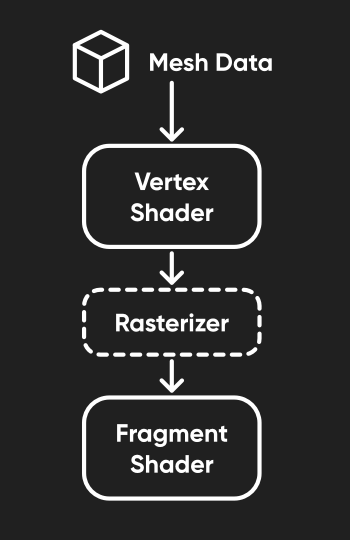
First, we need to talk about what the shader will actually be doing. It’s a shader’s job to work out where our mesh should be drawn on the screen, during a step called the vertex shader. It’s called that because it takes each vertex of the mesh and transforms it from a representation where each vertex position is relative to the mesh pivot point, known as object space, to a representation where each vertex is relative to the screen viewport, called clip space. Believe me, that’s oversimplified, but that’s all we need to know here.
Then there is a second step called the fragment shader which colors each pixel. In between the two stages there is a step called rasterization, which is handled automatically and turns your mesh into individual pixels, or fragments, which can then be shaded individually. We will write a vertex shader, which automatically runs on every vertex, and a fragment shader, which is run on each pixel.
First, we should include some useful library functions which will do some of the heavy lifting for us. I’m going to import the Core.hlsl file, located inside the URP shader library, using the #include directive. You’ll probably use this include file in every URP shader you write.
HLSLPROGRAM

#include "Packages/com.unity.render-pipelines.universal/ShaderLibrary/Core.hlsl"

...
Next, we need to define the shader properties used inside this shader. This may seem redundant since we already wrote the Properties block at the top of the file, but as we will see in later tutorials, there are properties we can use directly in ShaderLab without using them in HLSL, and there are properties we can specify in HLSL without using the Properties block. We use C-like syntax for this: first is the type, float4, for a 4-component vector of floating-point numbers, then its name, which is the one we wrote earlier with the underscore in front of it, _BaseColor.
HLSLPROGRAM

#include "Packages/com.unity.render-pipelines.universal/ShaderLibrary/Core.hlsl"

float4 _BaseColor;

...
Then, we need to define what information gets passed to each invocation of the vertex shader. With that in mind, I will create a struct, short for “structure”, to hold all the variables which get passed from the mesh to the vertex shader. You can name this anything you want, but most resources you find online will call this either appdata, VertexInput or Attributes, and I’m going to stick with calling it appdata for this series. As I mentioned, the vertex shader will operate on each vertex of the mesh, and we need to knows its position so we can transform the vertex to the correct position on-screen. Therefore, the only variable in the struct will be the position, which is a float4, and I’ll name it positionOS to make it clear that this is in object-space.
We also need to use some special HLSL syntax called a semantic so that the graphics API knows what data to pull from the mesh. To the graphics API, the name positionOS is meaningless, but if we give it the POSITION semantic after a colon, it will know that I want to pull the vertex position data into this variable. Also, make sure to end the struct closing brace with a semi-colon – it’s really easy to miss that out, especially if you’re coming from C# where you don’t need to do that after a struct.
struct appdata
{
    float4 positionOS : POSITION;
};
After the appdata struct, let’s also define what information is passed from the vertex shader to the fragment shader. We’ll use another struct, which conventionally is named v2f, VertexOutput, or Varyings, but I’m going to stick with v2f. Inside the struct, we only need the clip-space position, so I’ll put float4 positionCS, and this time we need another semantic, SV_POSITION. This one is important because it signifies to the rasterizer which position data to use when converting the mesh into pixels.
struct v2f
{
    float4 positionCS : SV_POSITION;
};
Finally, we are ready to write the vertex shader! This is a function which uses C-like syntax, so we need the return type, which is v2f, then the name of the function – I’m going to call it vert - then the parameters in parentheses. The only parameter is an appdata, which I’ll call v, for “vertex”. Inside the function, we’ll create a new v2f called o, for “output”. I’ll cast a zero to the v2f struct type, which is a pattern you’ll see often in shaders for setting all members of the struct to a zeroed-out value. You won’t always be explicitly setting a value for each member of the struct further down in your vertex shader, so it’s good to get into the practice of setting a default value to avoid errors.
Next, we need to apply the transformation between object-space positions and clip-space positions. This is why we included the Core.hlsl file, as it provides a very useful function we can use here, called TransformObjectToHClip. We can just pass in the input positionOS and assign the result to the output positionCS. Finally, we just return the v2f struct instance.
v2f vert(appdata v)
{
    v2f o = (v2f)0;

    o.positionCS = TransformObjectToHClip(v.positionOS.xyz);

    return o;
}
After the vertex shader comes the fragment shader. We can set it up similar to the vertex shader function: the return type is now float4, because we are just outputting a color to the screen, the function name will be frag, and the only parameter is a v2f, which I’m going to name i, for “input”. The difference here is that we need to use another semantic called SV_TARGET so that the graphics API knows where to bind the color output. SV_TARGET essentially refers to the screen output color.
float4 frag(v2f i) : SV_TARGET
{
    // Fragment shader code goes here.
}
Inside the fragment shader function, we technically have access to the clip-space position of the pixel, but we don’t need to do anything with it here to make the shader work – it’s just nice to have for some effects. Here’s how you could access it:
float4 pos = i.positionCS;
The rasterizer already dealt with positioning the pixel for us. With that in mind, all we need to do is return the _BaseColor property straight away.
float4 frag(v2f i) : SV_TARGET
{
    return _BaseColor;
}
The final thing we need to do in the shader file is to tell the graphics API which function to use for the vertex and fragment shaders, as the names vert and frag don’t mean anything special by themselves. To do that, let’s go right back to the top of the HLSLPROGRAM block and write #pragma vertex vert to assign the vert function as the vertex shader, and #pragma fragment frag to use the frag function as the fragment shader.
HLSLPROGRAM
#pragma vertex vert
#pragma fragment frag

#include "Packages/com.unity.render-pipelines.universal/ShaderLibrary/Core.hlsl"

...
With that, we are done with this shader file!
Let’s return to the Scene View and try out our new shader. I’ve added a basic sphere mesh to the scene, and I will now create a new material via Create -> Rendering -> Material, and assign our HelloWorld shader to it by clicking the Shader drop-down and selecting Basics -> HelloWorld. Now, we can choose any color we want to show up on our sphere!
We can also duplicate the sphere and the material, then use separate colors on the materials to make each mesh a different color. That’s the power of shader properties – we can write a shader effect once, and then create any number of materials with different settings to create wildly different effects with just one shader. Or, just change the color, I guess!
Congratulations on writing your first shader – I know the syntax is weird, but you’ve taken the first step and it only gets more exciting from here! If I have any advice before the next tutorial comes out, I’d say you should make a few mistakes. Intentionally mistype something or leave out a keyword or a semantic here or there, miss out a semicolon, or use an invalid tag.
With shaders, you’re gonna see many weird errors, and it’s not always going to be clear exactly where or what the problem is, so I think it’s worth spending just a little bit of time getting a feel for them. I won’t have time to cover every possible mistake and error message in this series, so unfortunately, you’ll need to just Google error messages from time to time.
In the next part of this series, we will learn how to map textures to each part of the mesh and then draw the texture on the mesh surface. Until then, have fun making shaders!
By the way, here’s the full HelloWorld shader:
Shader "Basics/HelloWorld"
{
    Properties
    {
        _BaseColor("Base Color", Color) = (1, 1, 1, 1)
    }
    SubShader
    {
        Tags
        {
            "RenderPipeline" = "UniversalPipeline"
            "RenderType" = "Opaque"
            "Queue" = "Geometry"
        }

        Pass
        {
            HLSLPROGRAM
            #pragma vertex vert
            #pragma fragment frag

            #include "Packages/com.unity.render-pipelines.universal/ShaderLibrary/Core.hlsl"

            float4 _BaseColor;

            struct appdata
            {
                float4 positionOS : POSITION;
            };

            struct v2f
            {
                float4 positionCS : SV_POSITION;
            };

            v2f vert(appdata v)
            {
                v2f o = (v2f)0;

                o.positionCS = TransformObjectToHClip(v.positionOS.xyz);

                return o;
            }

            float4 frag(v2f i) : SV_TARGET
            {
                return _BaseColor;
            }

            ENDHLSL
        }
    }
}
Subscribe to my Patreon for perks including early access, your name in the credits of my videos, and bonus access to several premium shader packs!